

Employees
Managing Employees
How to add and manage restaurant employees on Menoo Partners
Adding Employees on Menoo Partners
To add employees to your Menoo Partners account and allow them to use the Menoo Waiter app, follow the steps below:
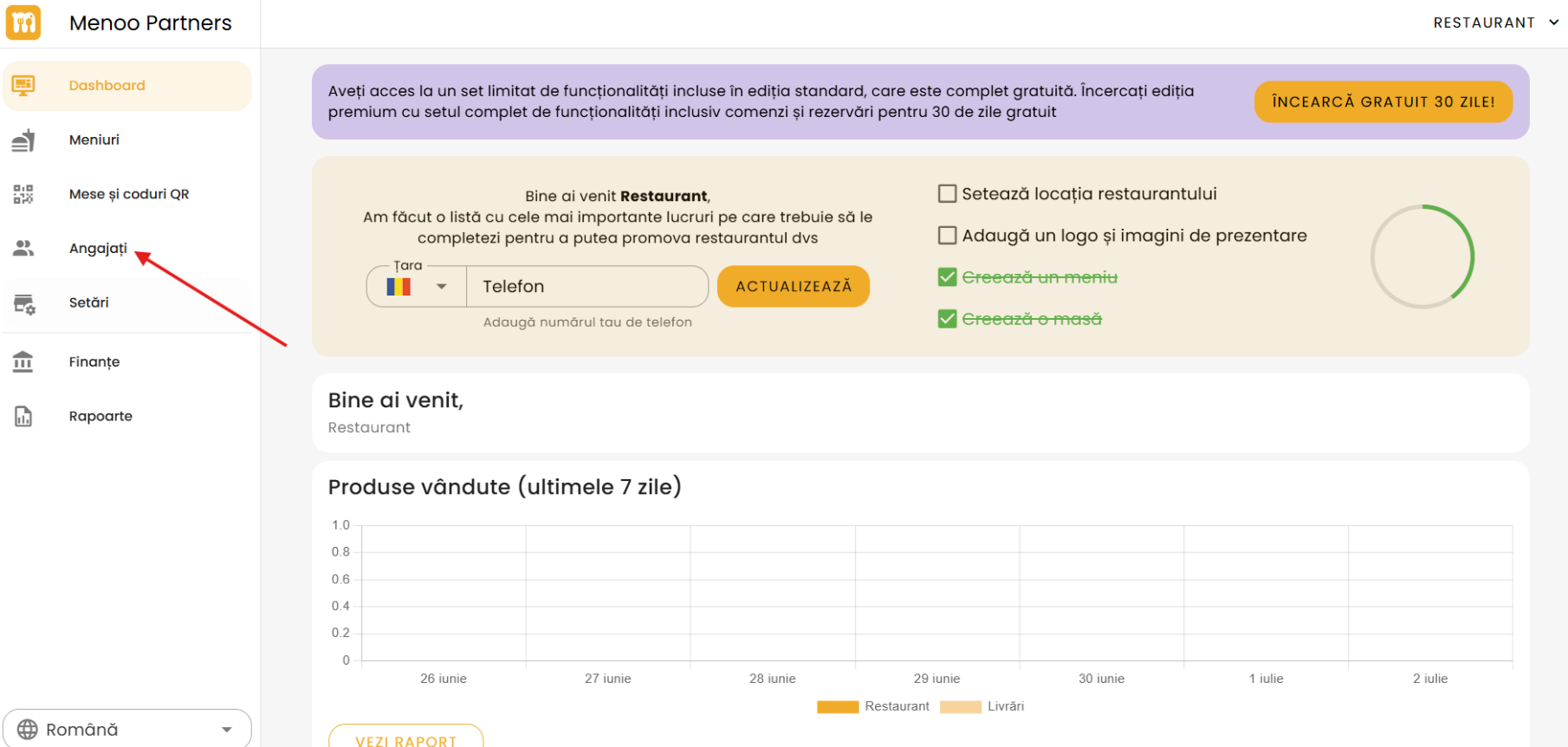
Go to the "Employees" section
Navigate to: https://parteneri.menoo.ro/ro/dashboard/users or select "Employees" from the sidebar after logging in.
Add a new employee
Press the "+ ADD EMPLOYEE" button located above the employees table.
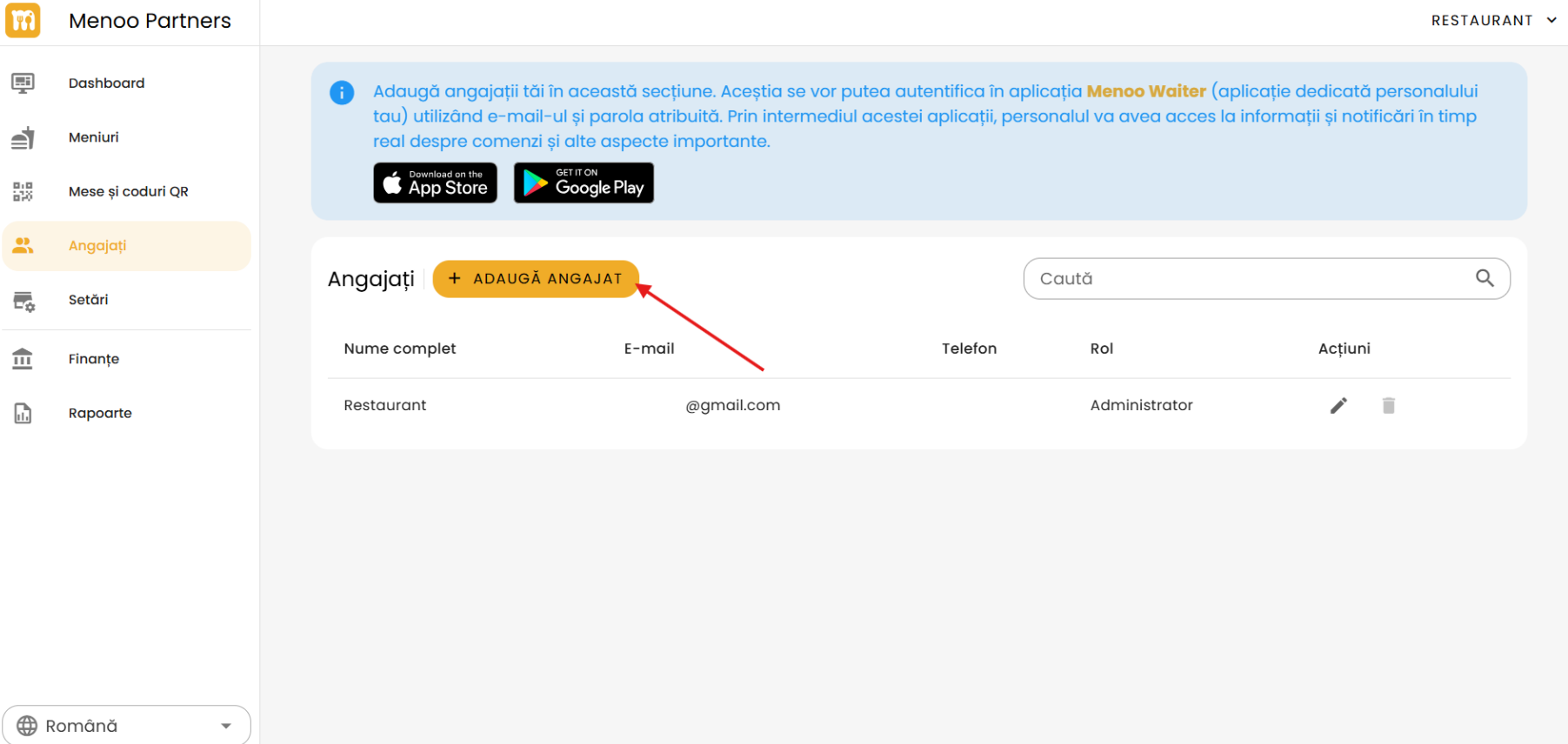
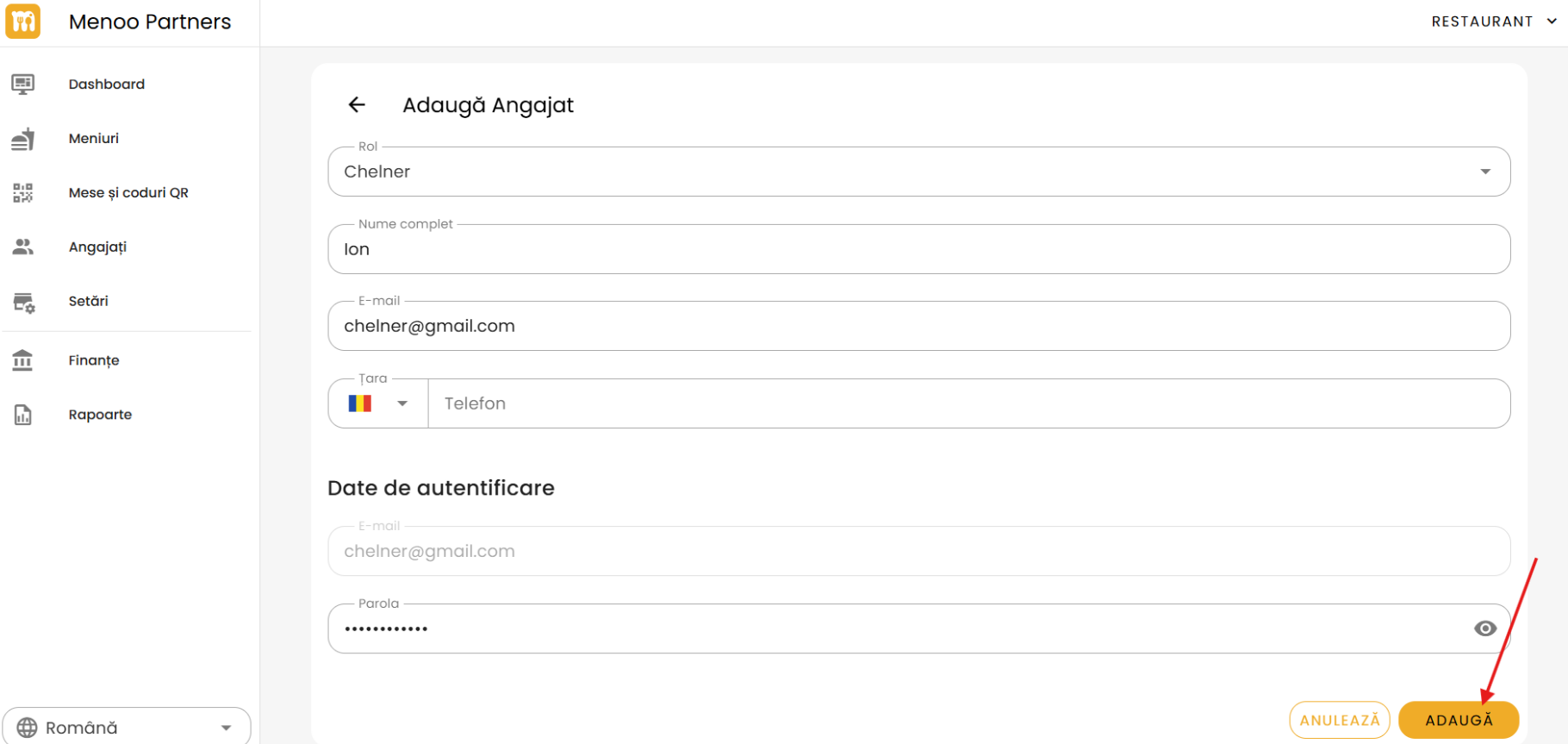
Fill in the employee information
- Role: Select one of the available roles:
- Administrator
- Waiter
- Bartender
- Cook
- Delivery driver
- Full name: Enter the employee's full name.
- Phone: Select the country code (default: Romania) and enter the phone number.
Set the employee's login credentials
- Email: Verify or re-enter the email address.
- Password: Set a secure password and communicate it to the employee. (You can use the "eye" icon to show/hide the password.)
Complete the process
- Press the orange "ADD" button to save the data.
- To cancel, press "CANCEL".
Important Information
- Added employees can log in to the Menoo Waiter app using the email and password you set.
- Through the app, staff have real-time access to:
- orders,
- notifications,
- other essential features for daily operations.
- The Menoo Waiter app is available on:
- App Store (for iOS)
- Google Play (for Android)
Download links are displayed in the "Employees" section of the platform.