

Tables, QR & Delivery
With your menu created, the next steps are setting up your restaurant tables, generating QR codes, and optionally enabling delivery service.
Setting Up Tables and QR Codes
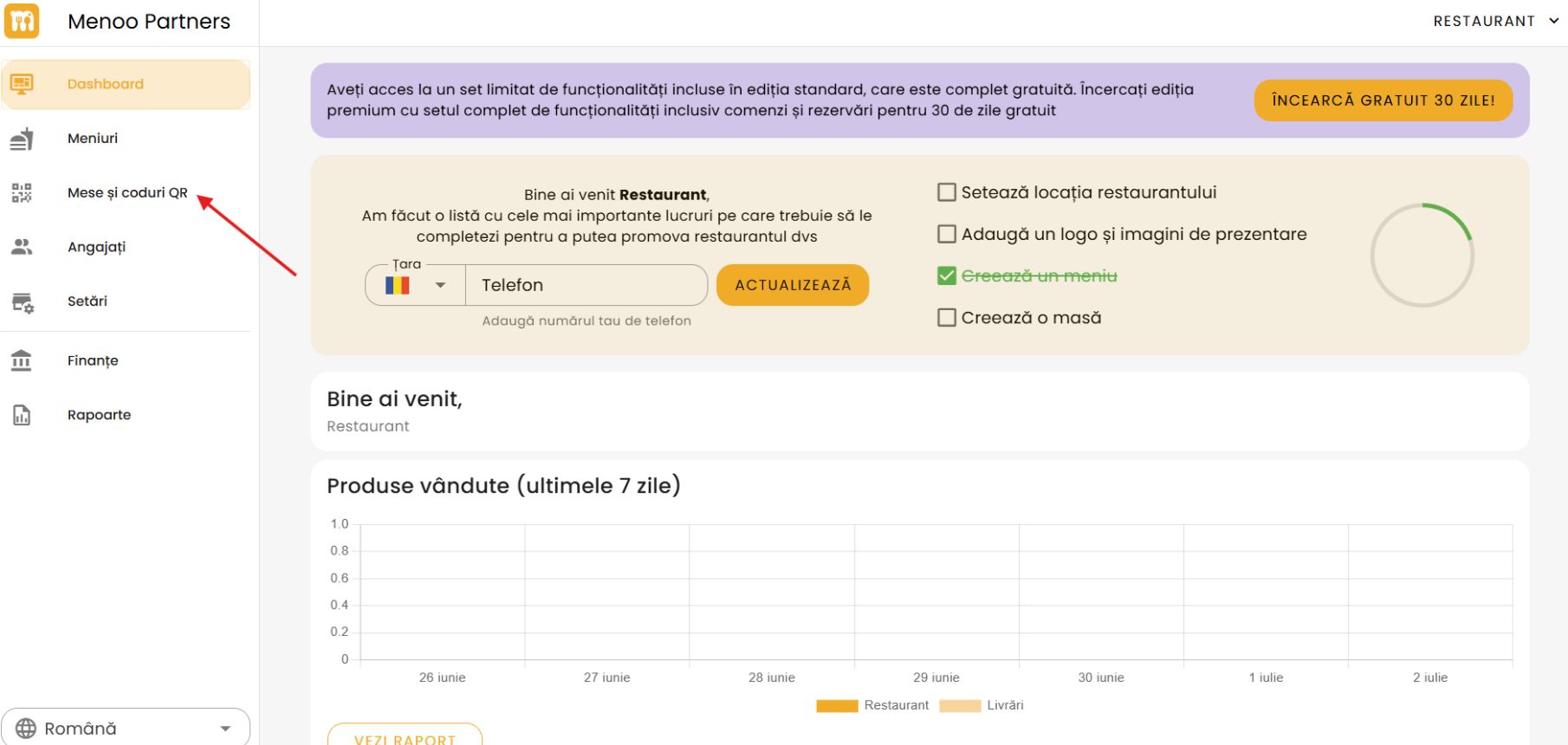
Go to the "Tables & QR Codes" section
Navigate to: https://parteneri.menoo.ro/ro/dashboard/tables or select "Tables & QR Codes" from the sidebar.
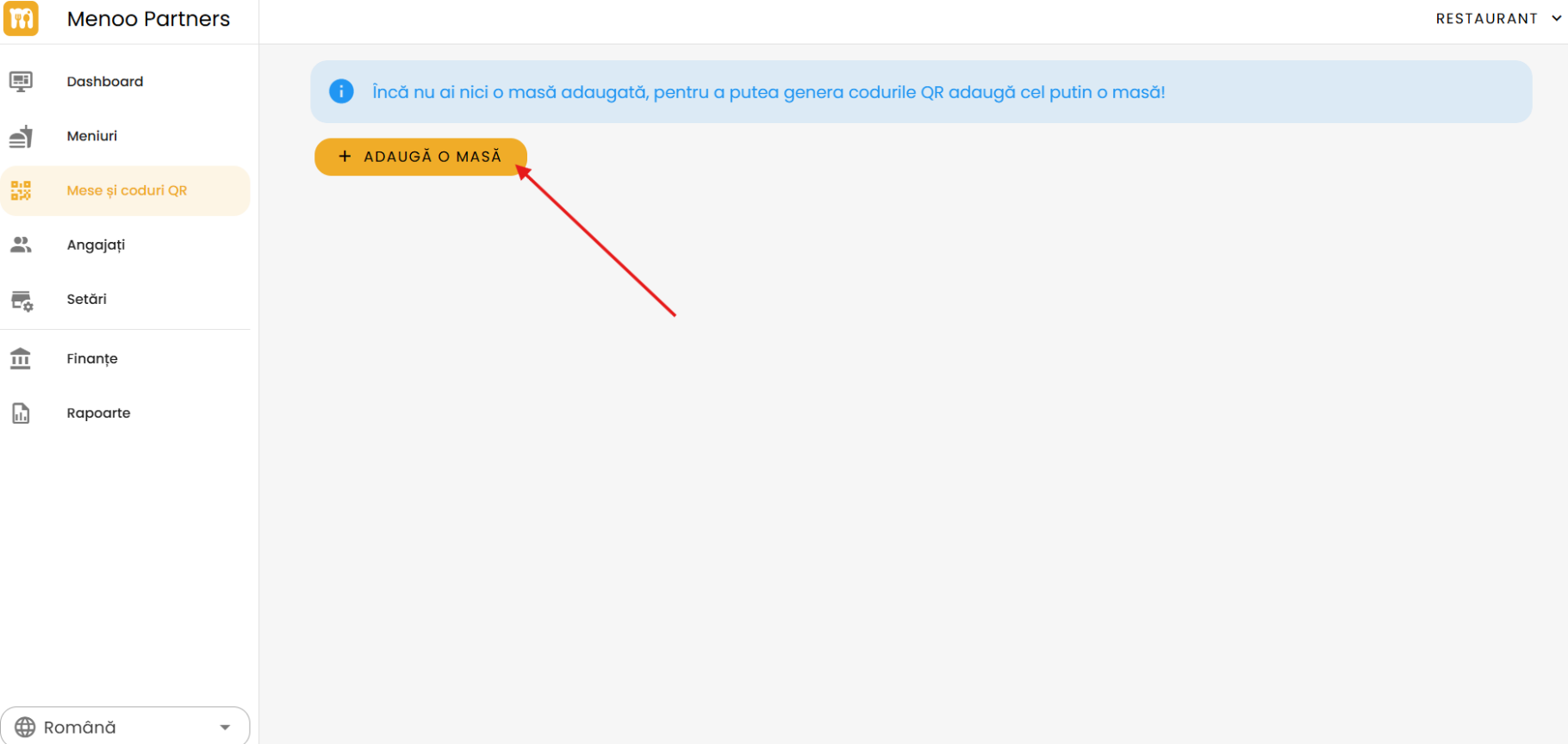
Add a table
Press the "+ ADD A TABLE" button.
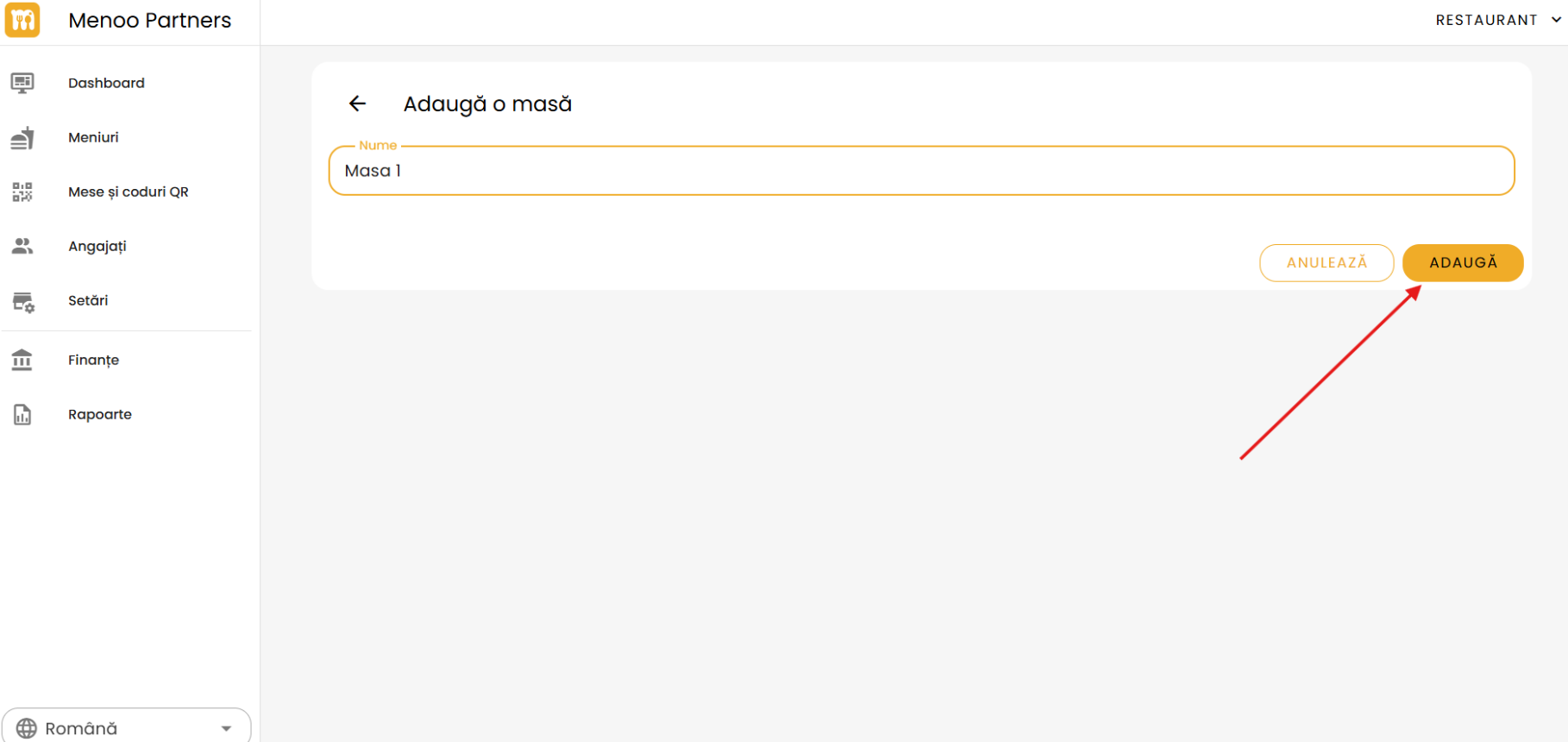
Enter a descriptive name (e.g., "Table 1", "Window Table", "Terrace 3") and press "ADD".
Customize and download the QR code
After adding a table, the system automatically generates a unique QR code. Available options:
- Customize — modify the QR code's appearance (colors, shape, logo).
- Include table name — check to display the table name on the QR code.
- Copy URL — copy the direct link to the table's menu.
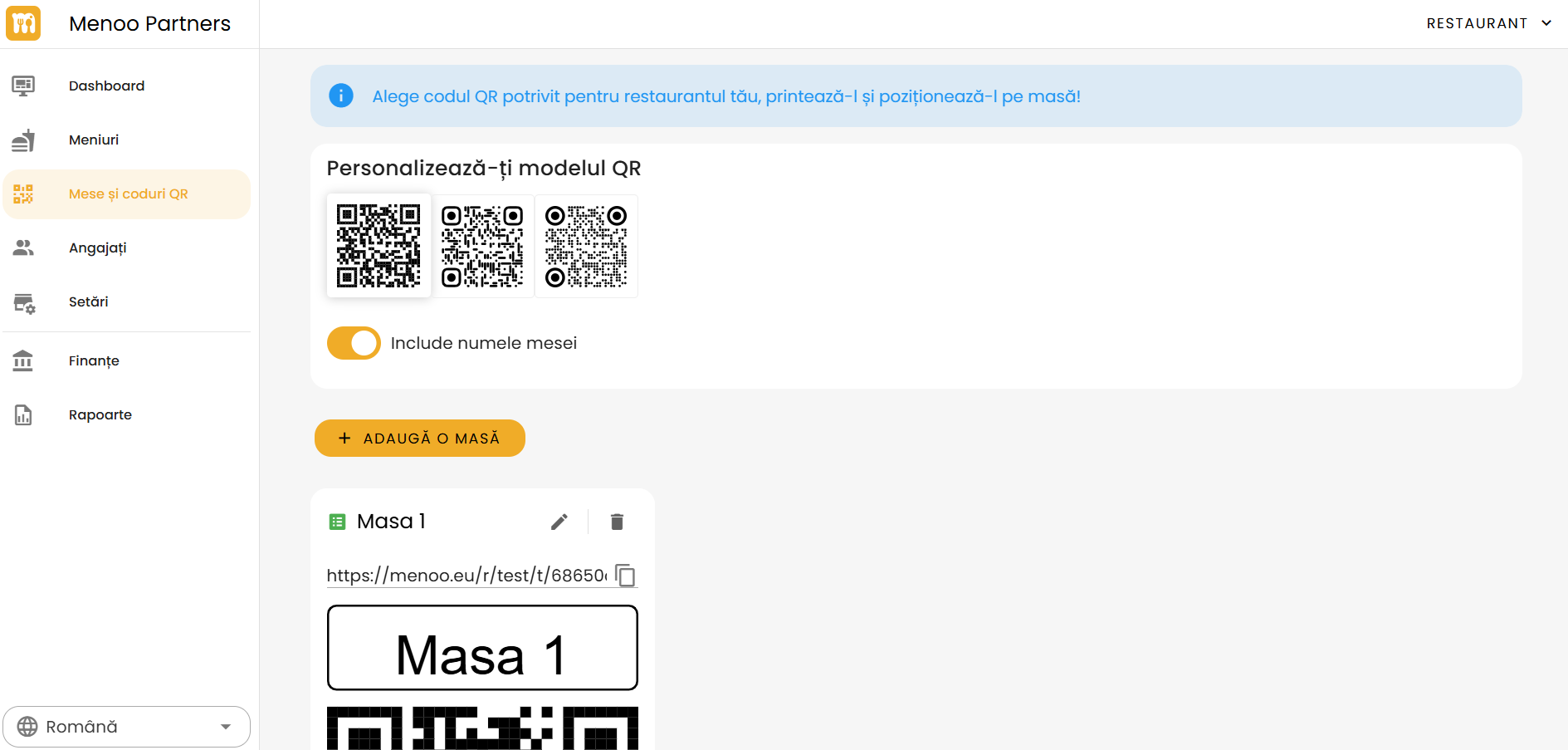
Available actions for each table
- Edit — change the table name.
- Delete — remove the table and its associated QR code.
- Copy URL — copy the table's direct link for sharing.
Enabling Deliveries
If you want to offer home delivery, you can enable it from your restaurant settings.
Navigate to settings
Go to Settings → Deliveries (https://parteneri.menoo.ro/ro/dashboard/settings#delivery)
Enable deliveries
Toggle on "Enable home delivery"
Configure basic parameters
- Delivery fee — fixed amount per delivery, in RON.
- Standard delivery distance — coverage radius for deliveries (km).
- Maximum delivery distance — maximum distance limit (km).
- Delivery types — home delivery, restaurant pickup, or both.
Save configuration
Press "UPDATE" to save.
For advanced configuration (free delivery thresholds, packaging fees, delivery schedule), see the complete documentation:
What's Next?
The basic setup is complete. The next section provides an overview of all platform features.