

Create Your First Menu
After creating your account, the next step is adding your digital menu. Menoo offers two methods: AI auto-import (recommended) or manual entry.
Go to the "Menus" section
Navigate to: https://parteneri.menoo.ro/ro/dashboard/menus/ or select "Menus" from the sidebar after logging in.
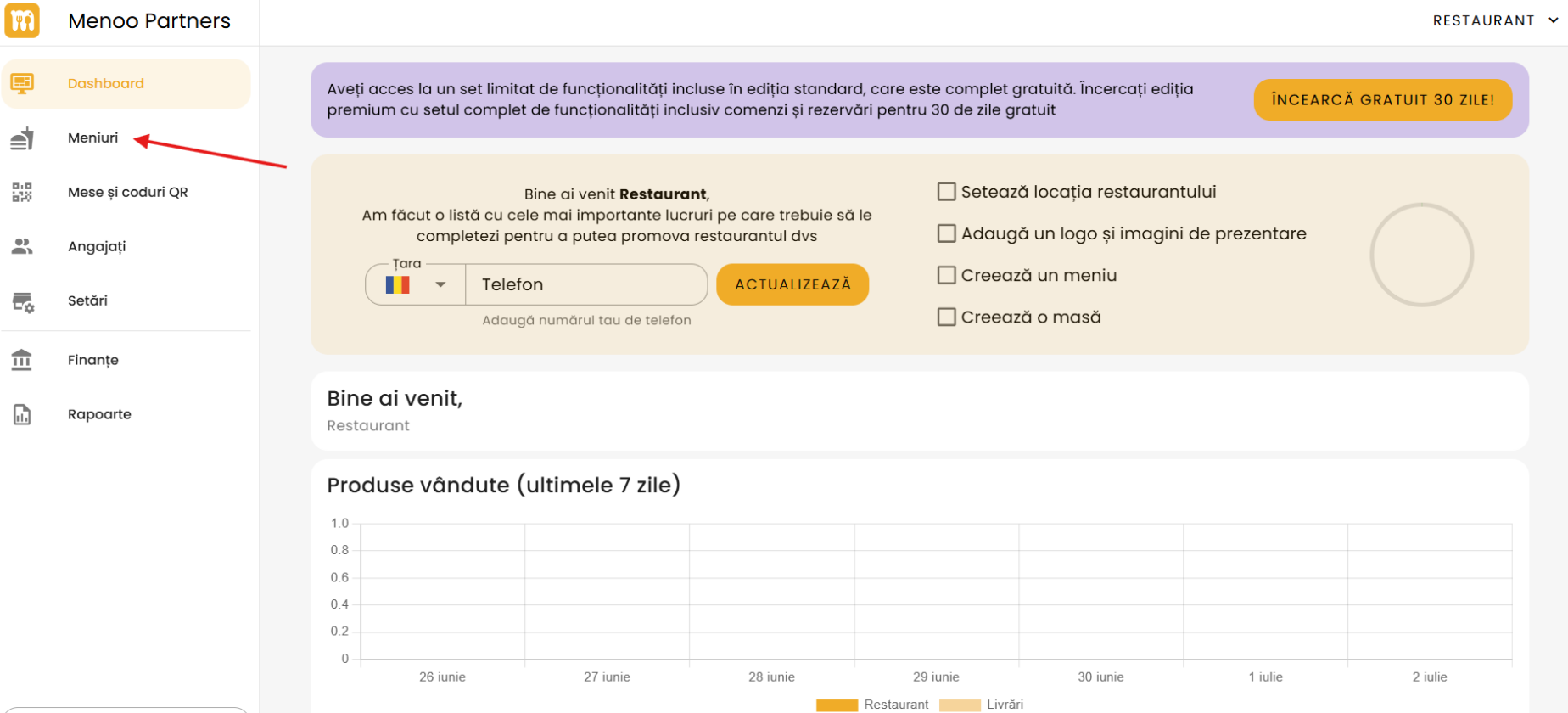
Add a new menu
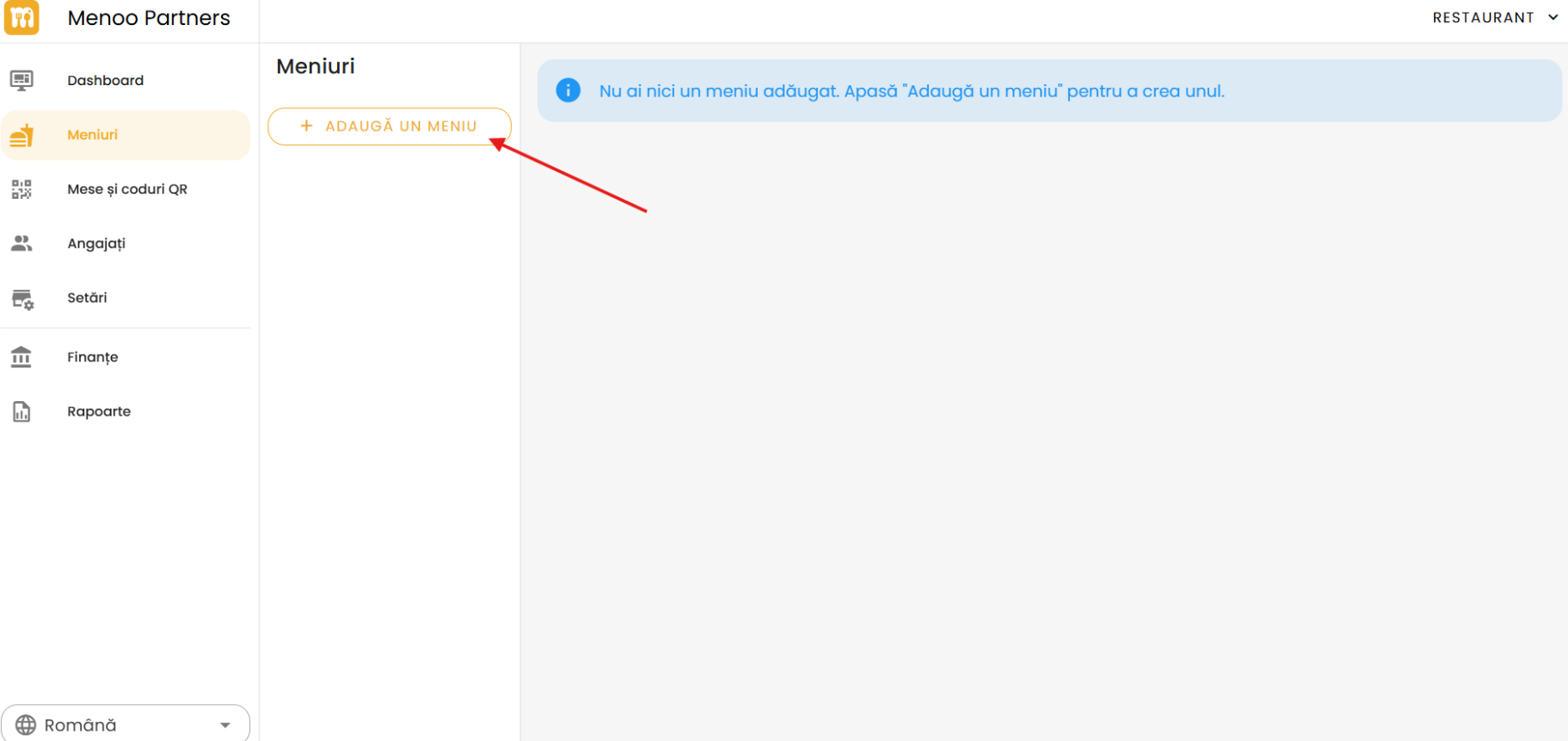
Press the "+ ADD A MENU" button.
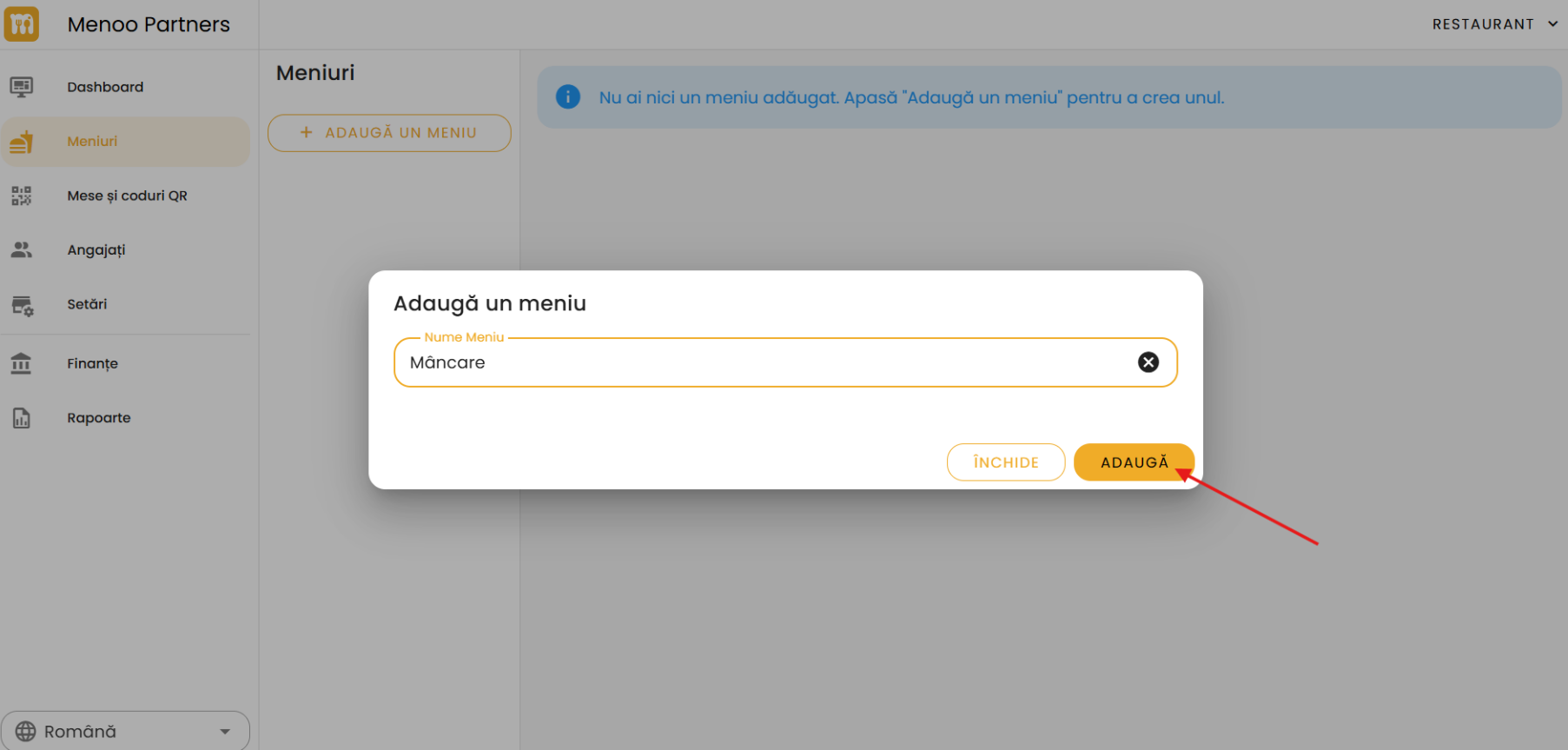
In the pop-up window, enter a relevant name for your menu (e.g., "Main Menu", "Breakfast", "Drinks") and press "ADD".
Add products
After creating the menu, you have two options for adding products.
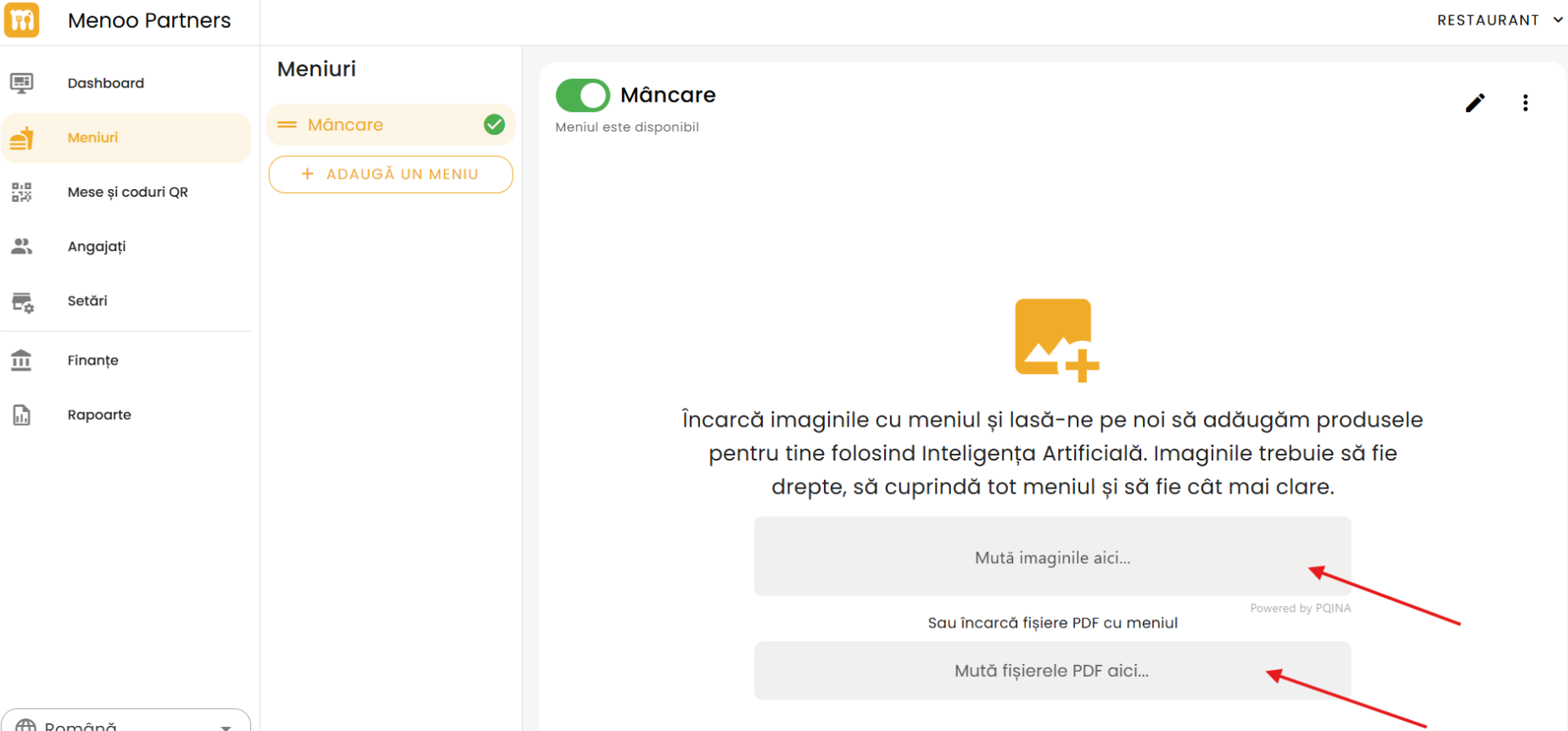
This is the fastest way to populate your digital menu. The system uses artificial intelligence to automatically extract products, prices, and categories from uploaded images or documents.
- Upload images — drag and drop menu photos into the designated area, or click to select them.
- Upload PDF files — drag and drop PDFs into the designated area.
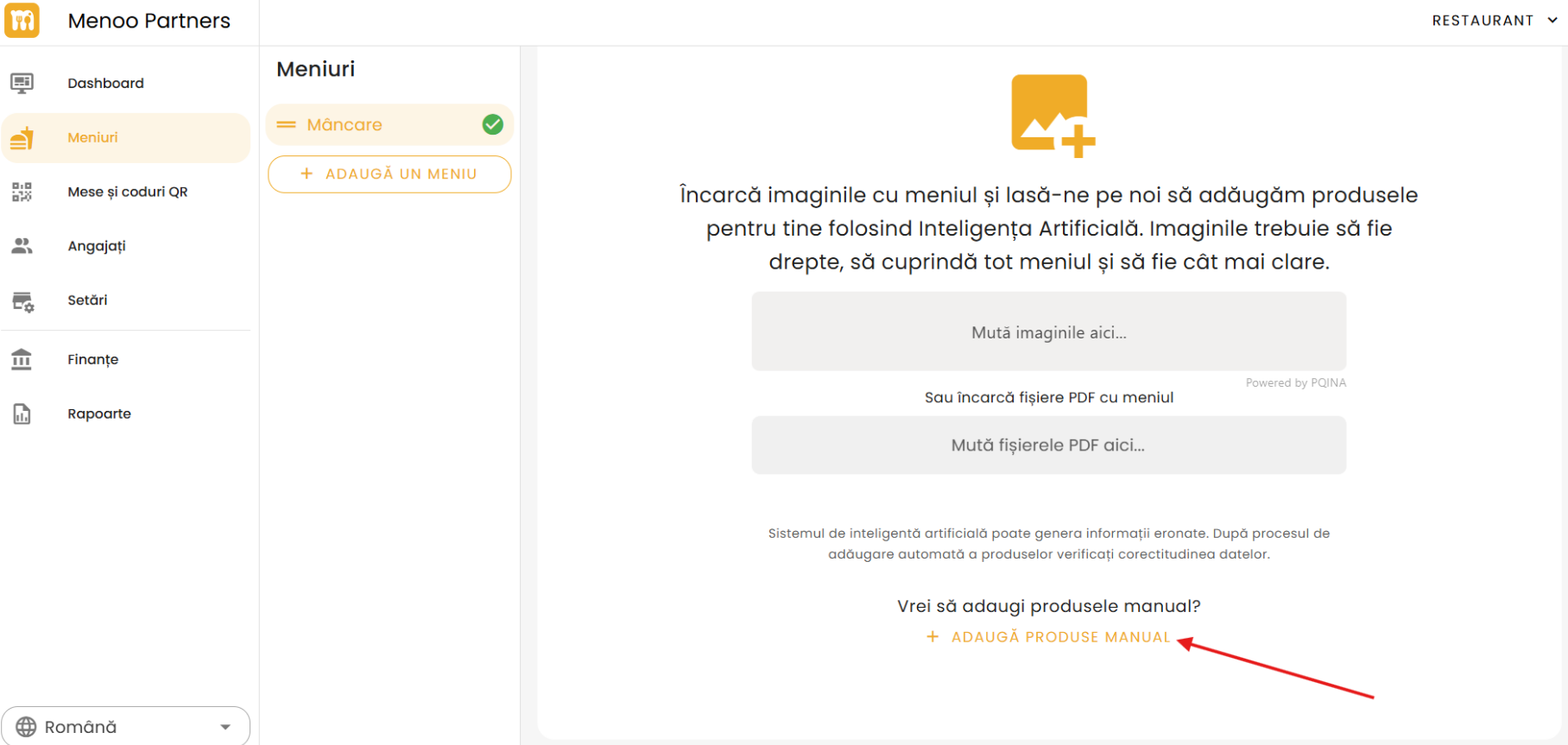
If you prefer to add products individually, click "Want to add products manually?" and then "+ ADD PRODUCTS MANUALLY". You can organize products into categories and reorder both categories and products within each category.
Detailed Documentation
For complete menu management guides, see:
What's Next?
After creating your menu, set up tables and QR codes so customers can access the digital menu.