

Menu
Manual Menu and Product Creation in Menoo Partners
Detailed guide for building and managing a digital menu by manually adding categories and products
This section provides a detailed guide on how to build and manage your restaurant's digital menu on the Menoo Partners platform by manually adding categories and products. This method gives you full control over the menu structure and each product's details.
Access URL: https://parteneri.menoo.ro/ro/dashboard/menus
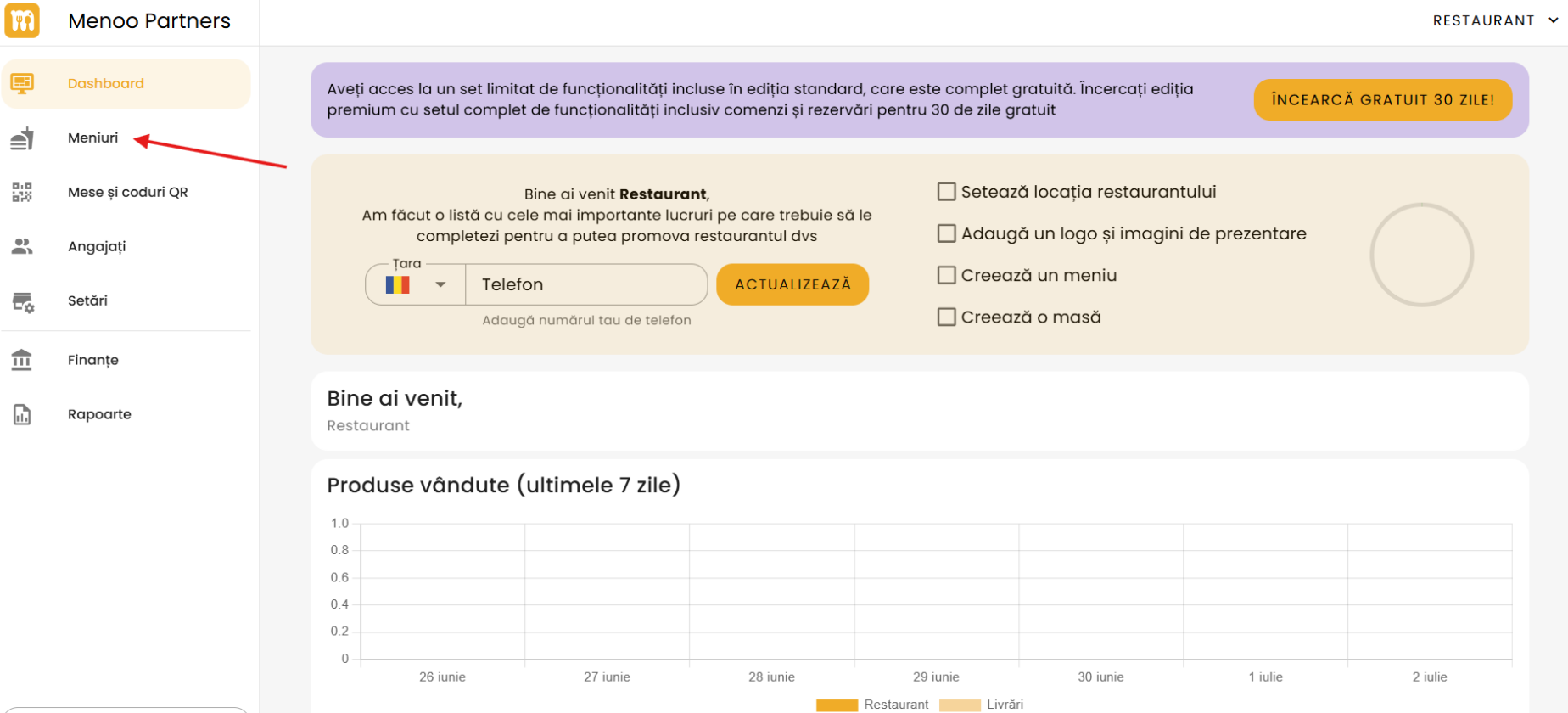
Accessing the "Menus" Section
- Log in to your Menoo Partners account.
- From the left sidebar menu, select the Menus option.
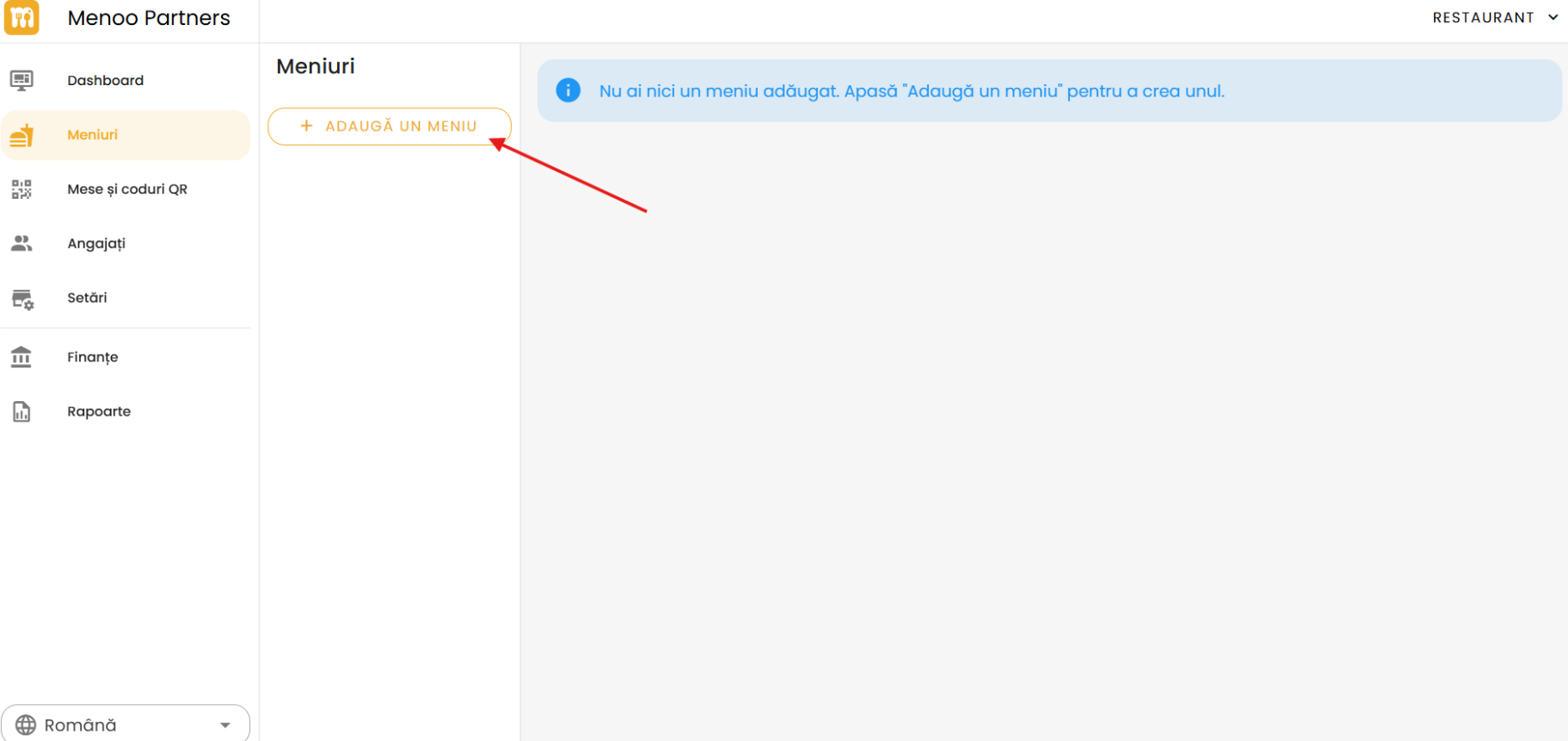
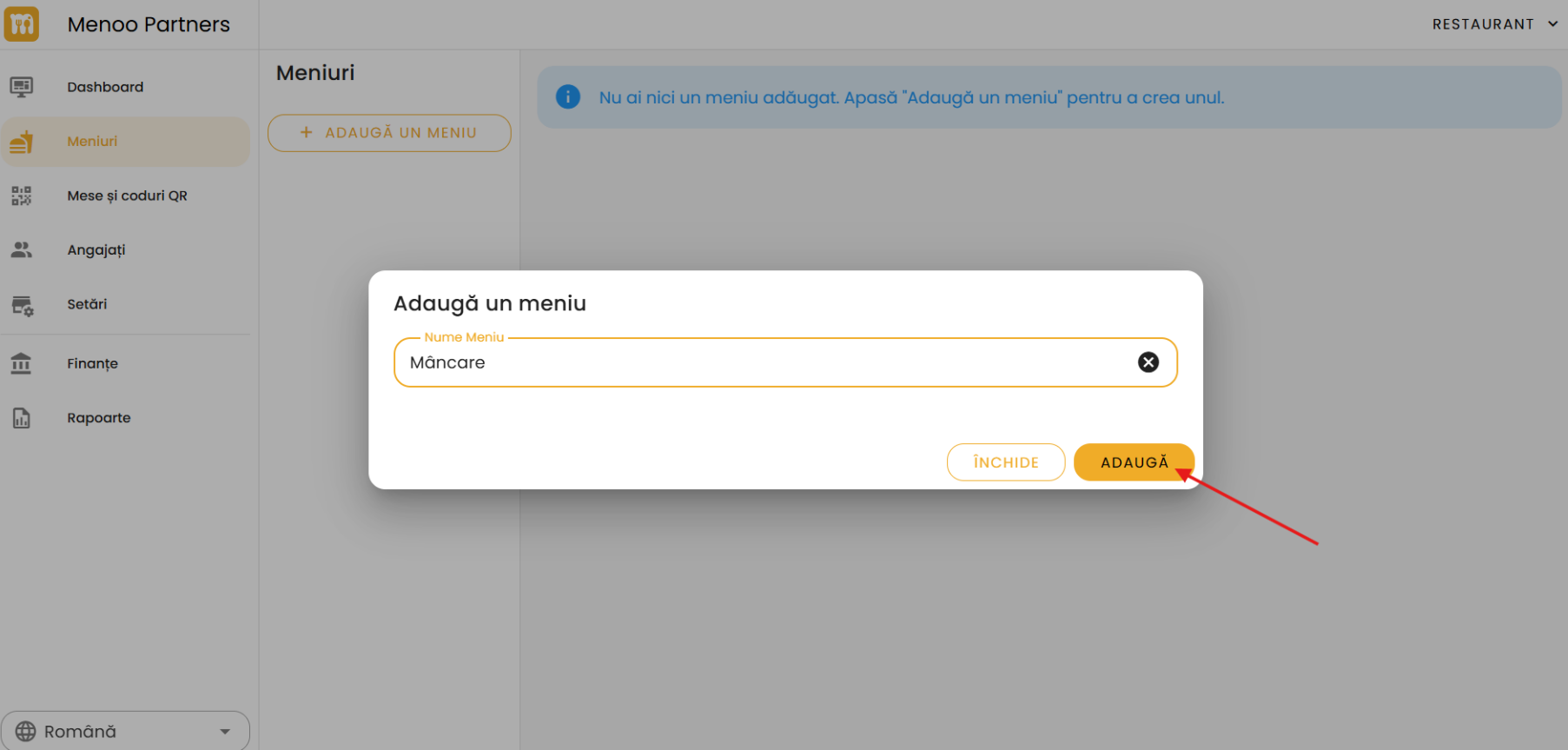
- If you don't have a menu created, create a new one (e.g.: "Main Menu").
Initiating Manual Product Addition
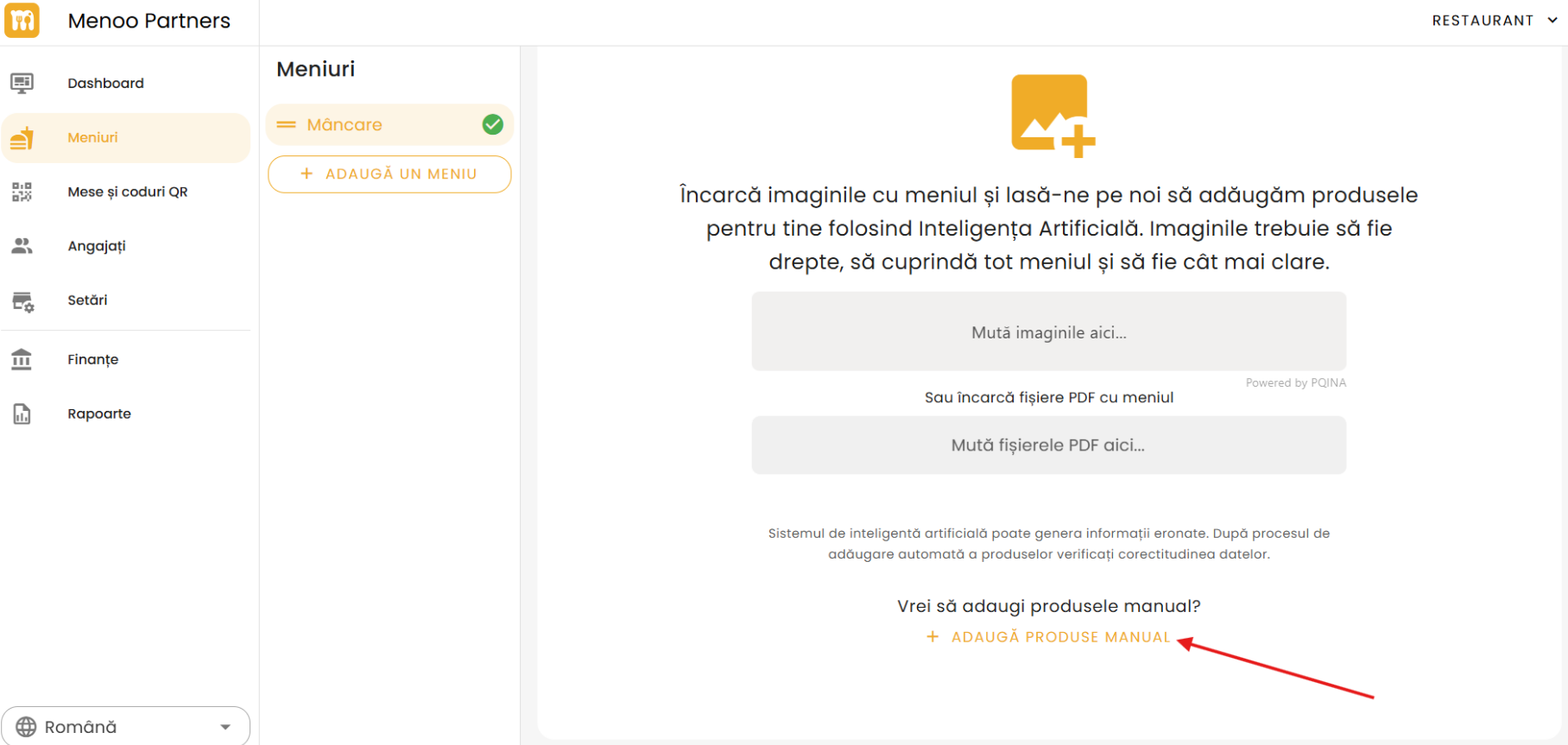
- On the Menus page, below the AI image upload area, access the + ADD PRODUCTS MANUALLY link.
- You will be redirected to the step-by-step digital menu builder interface.
Managing Categories
Adding a New Category
- Press the + ADD CATEGORY button.
- Enter the category name (e.g.: "Main Courses", "Desserts", "Drinks").
- Press ADD to save the category.
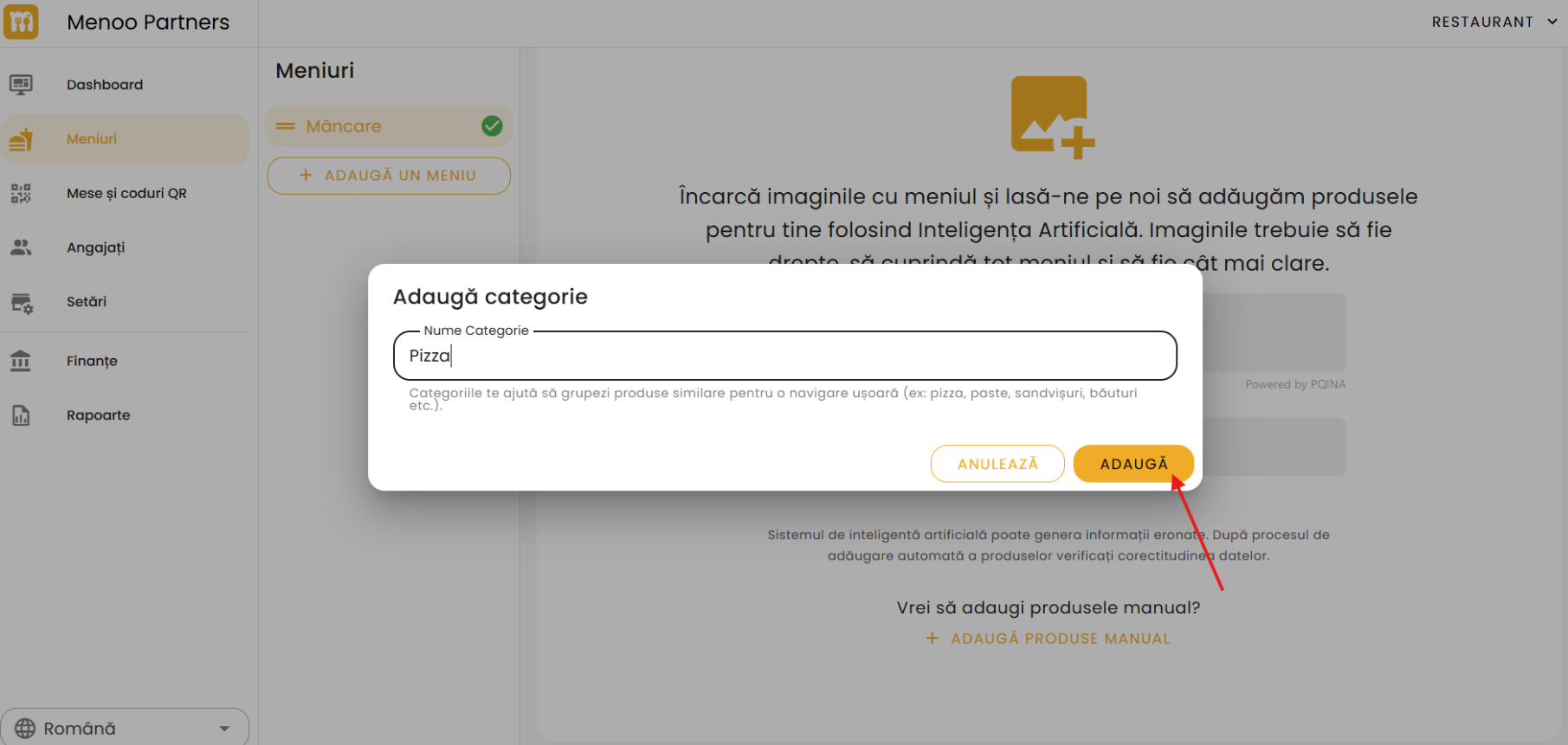
Viewing and Editing Categories
- Categories will appear in a list.
- For modifications, use the available options:
- Edit: modify the category name.
- Delete: remove the category (make sure it doesn't contain any products).
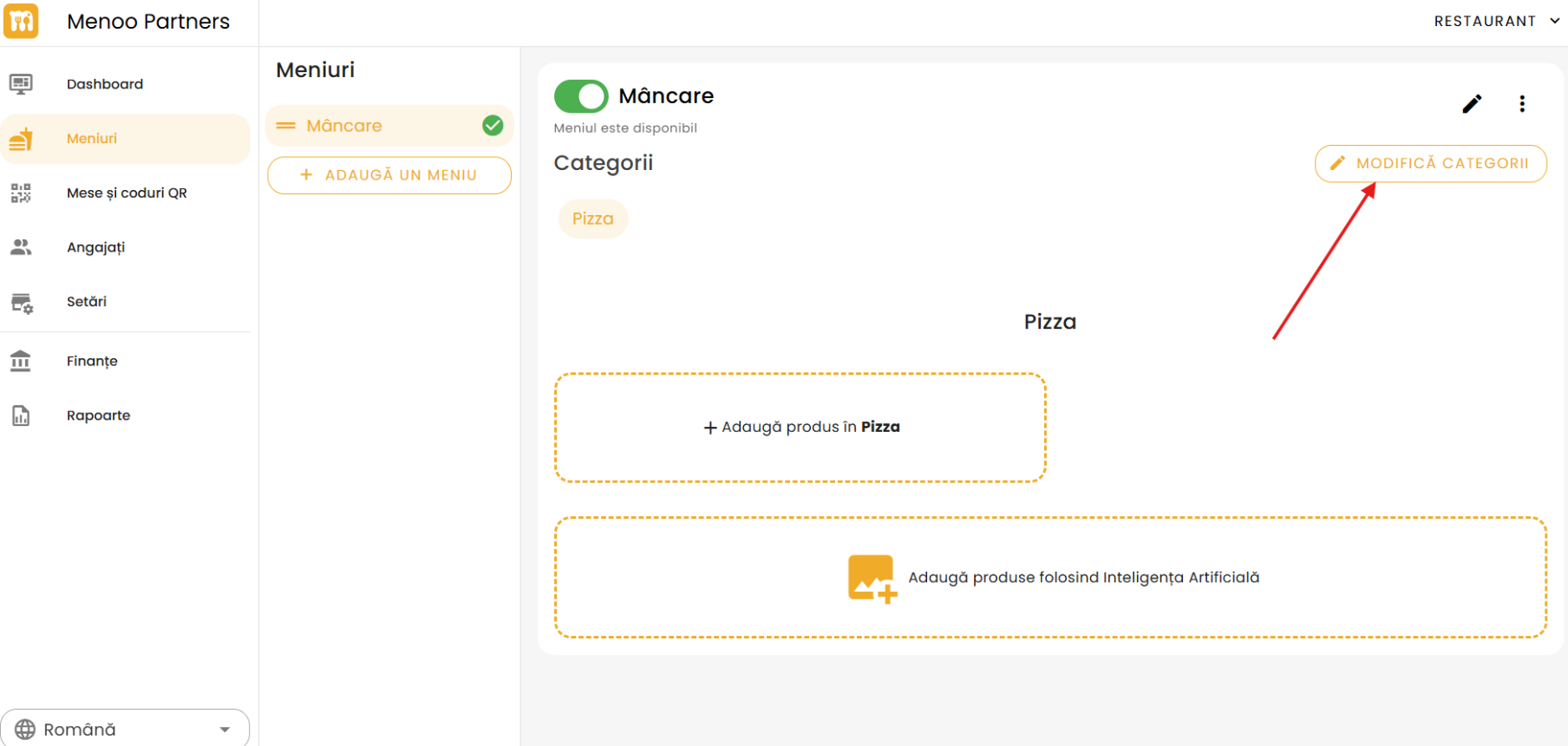
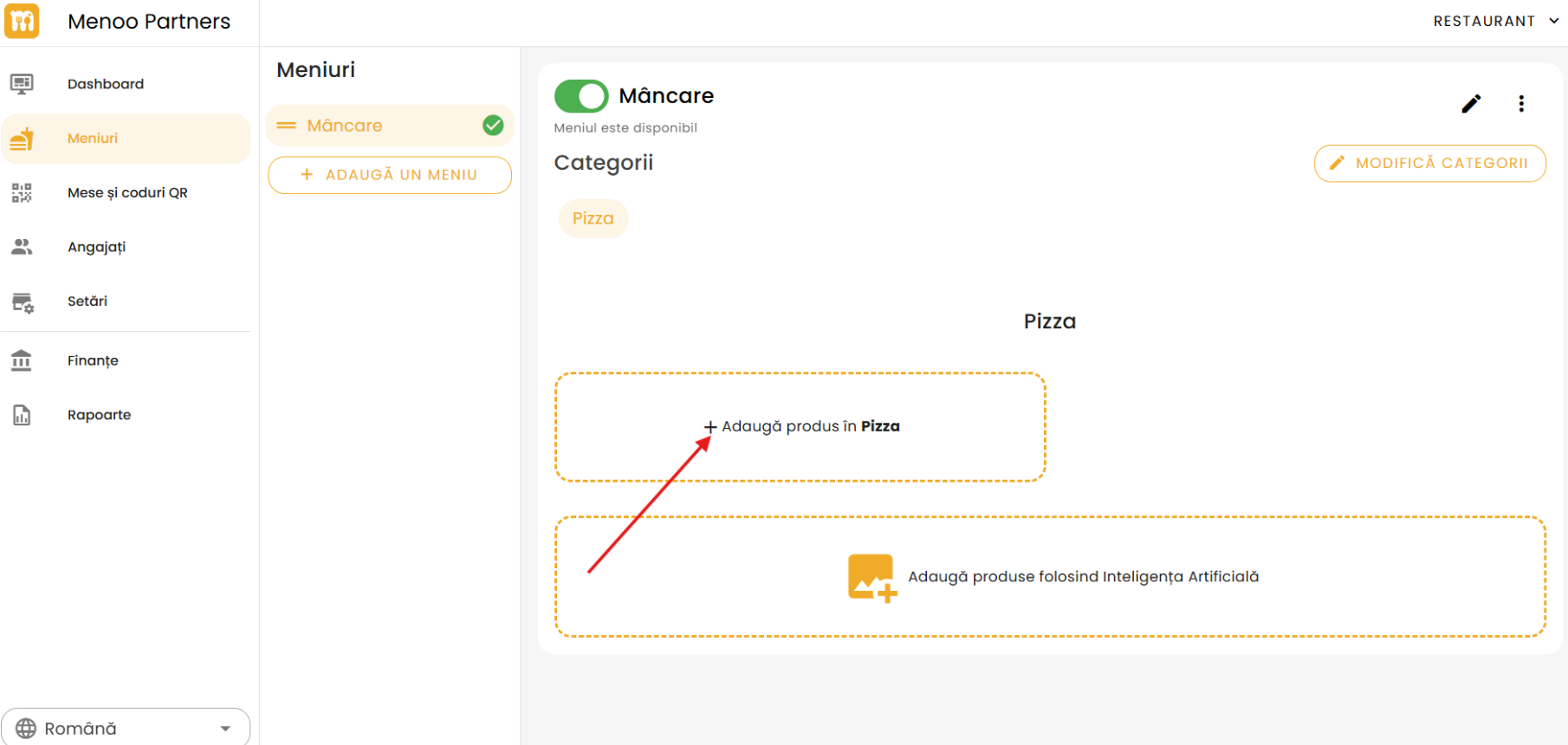
Adding a New Product
Steps for adding
- Within a category, press + ADD PRODUCT.
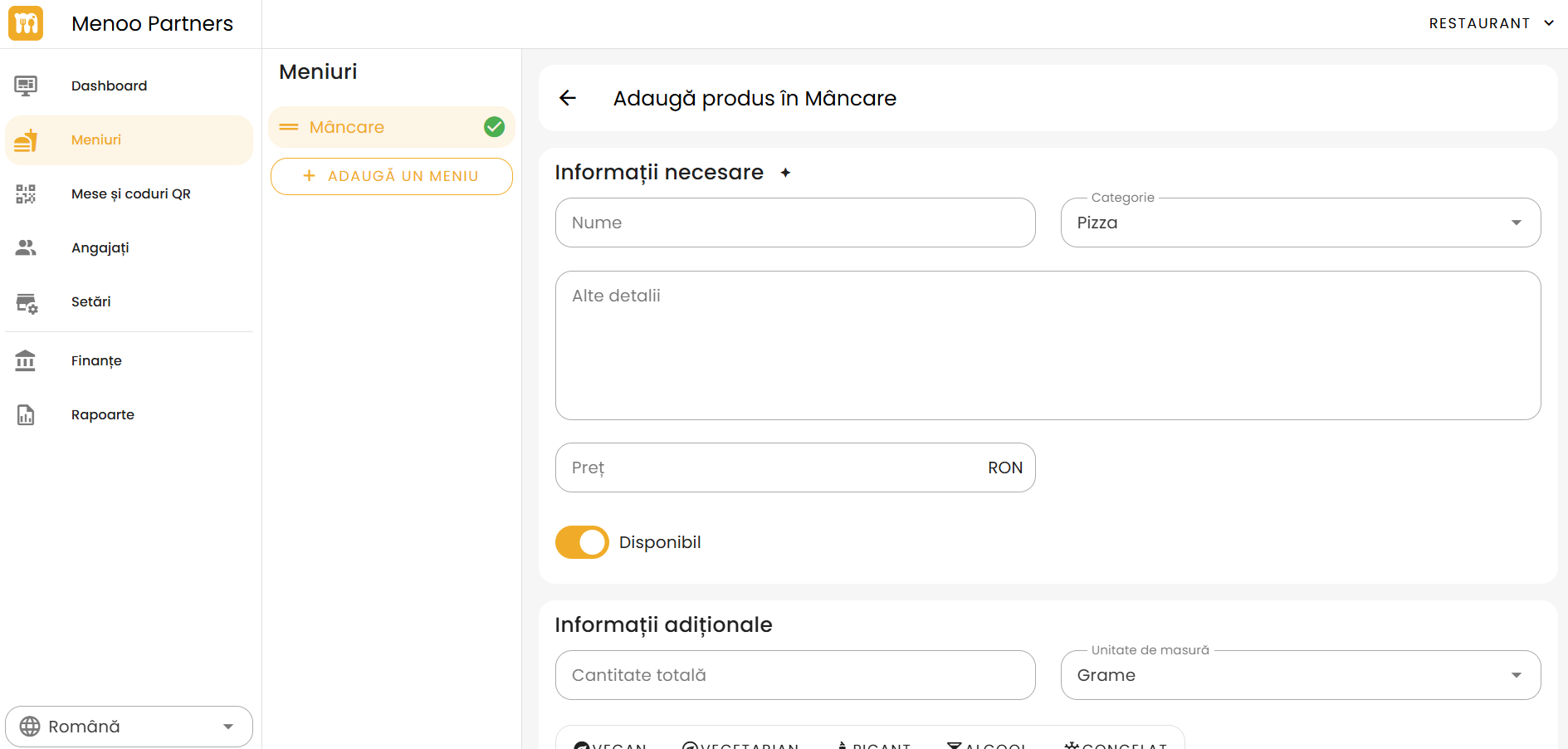
- Fill in the following fields in the "Add Product" form:
Product details
- Product Name: e.g. "Pizza Margherita", "Coca-Cola".
- Description: brief text with ingredients, allergens, or promotional messages.
- Price: enter the amount in RON.
Product image
- Upload a clear, representative image of the product.
Product category
- Select one of the categories for the product.
Availability
- Product is available: makes the product visible in the app.
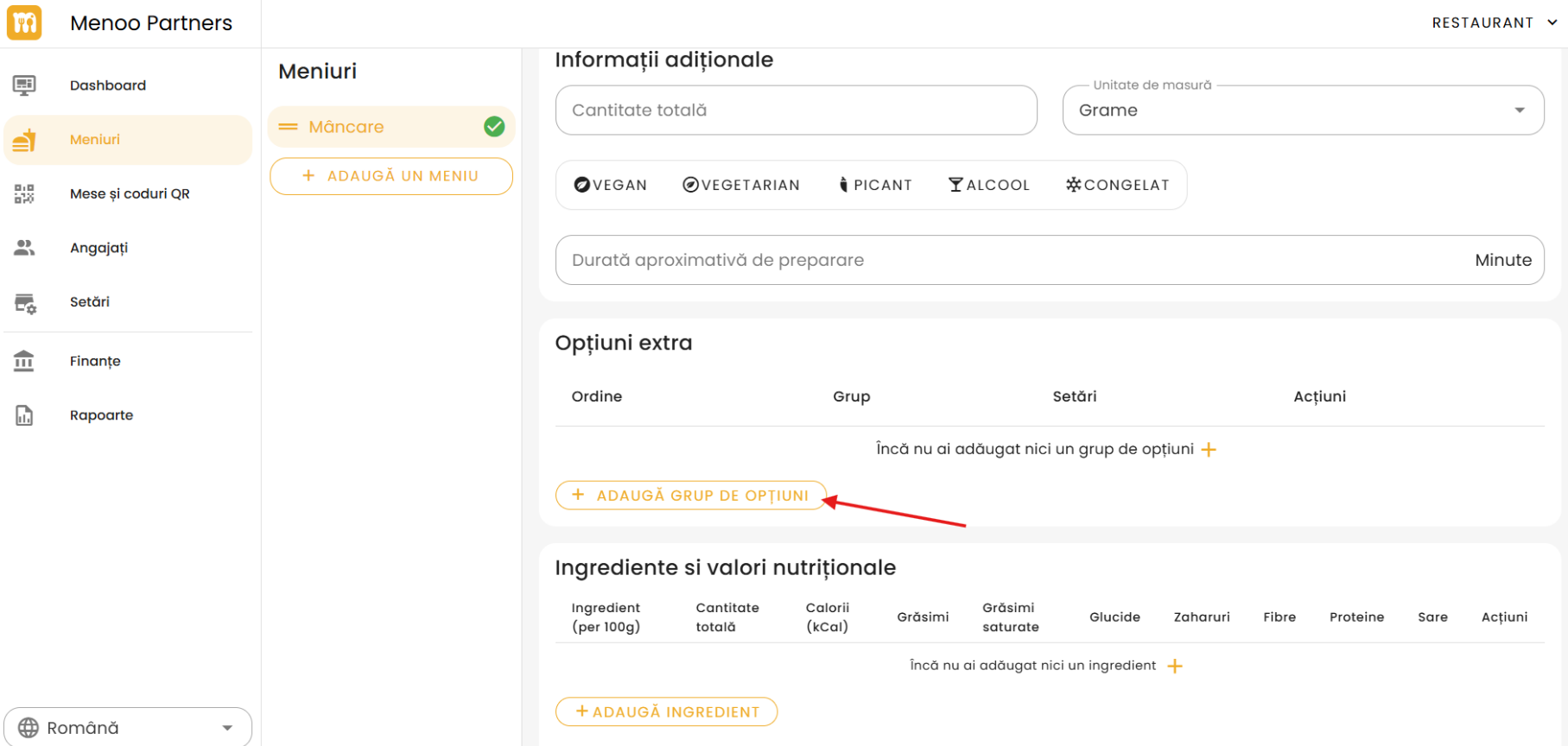
Options and modifiers (if applicable)
- Press Add an option to configure options.
- Option types:
- Multiple selection: the customer can choose several options.
- Single selection: the customer chooses one option.
- Mark the option as "required" if necessary.
- Enter the list of options, with any additional prices.
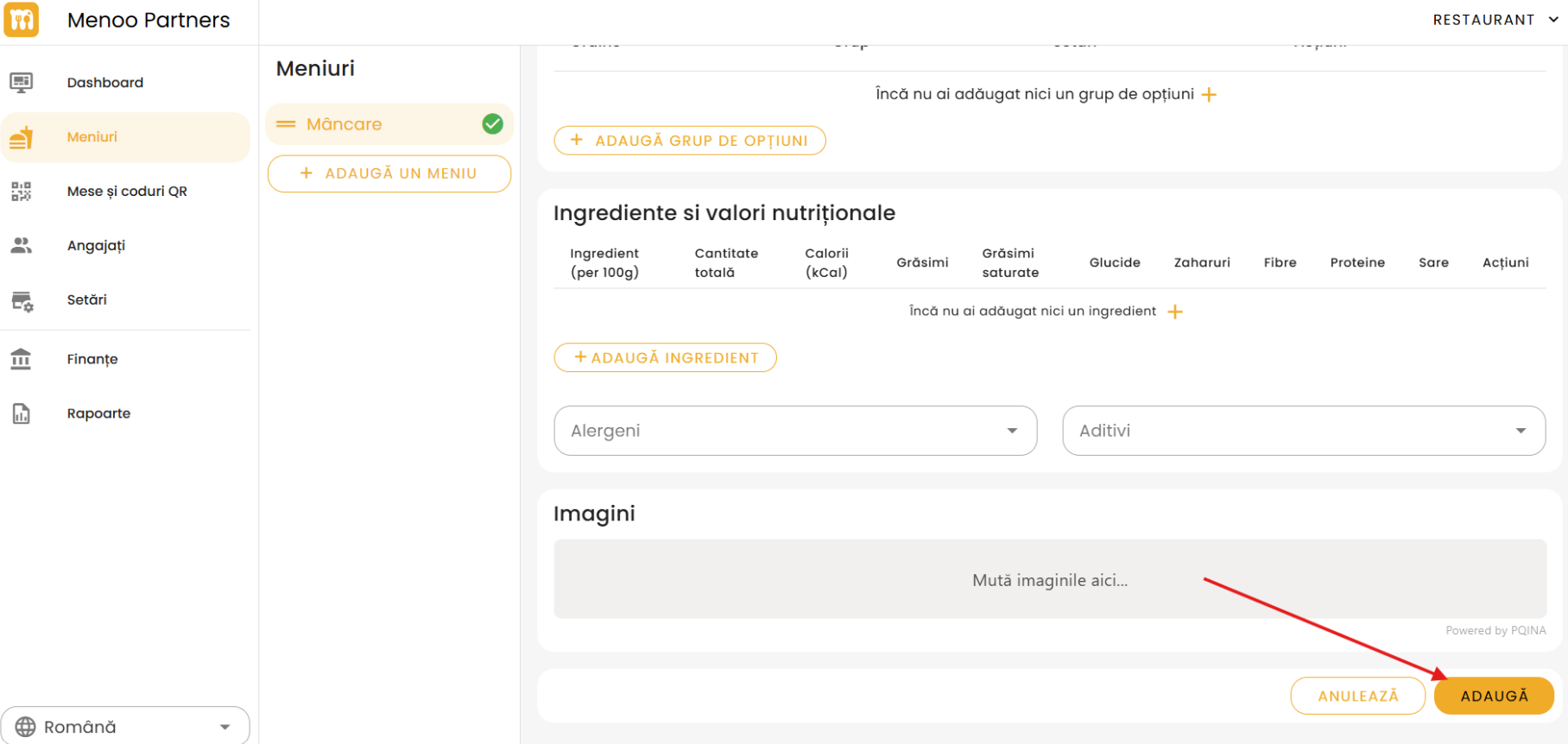
Saving the product
- Press ADD to save the product with all applied settings.
Review and Publish Menu
- Return to the main Menus page.
- Verify:
- Categories are correct.
- Products appear in the right categories.
- All details (descriptions, prices, images) are complete and accurate.
- The menu is now available to customers through the Menoo app or QR codes.