

Menu
How to create a menu?
Complete guide to the process of adding a menu on the Menoo Partners platform
The process of adding a menu on Menoo Partners
To add a new menu on the Menoo platform, follow the steps below:
Access the "Menus" section
Navigate to: https://parteneri.menoo.ro/ro/dashboard/menus/ or select the "Menus" option from the left sidebar menu after logging in.
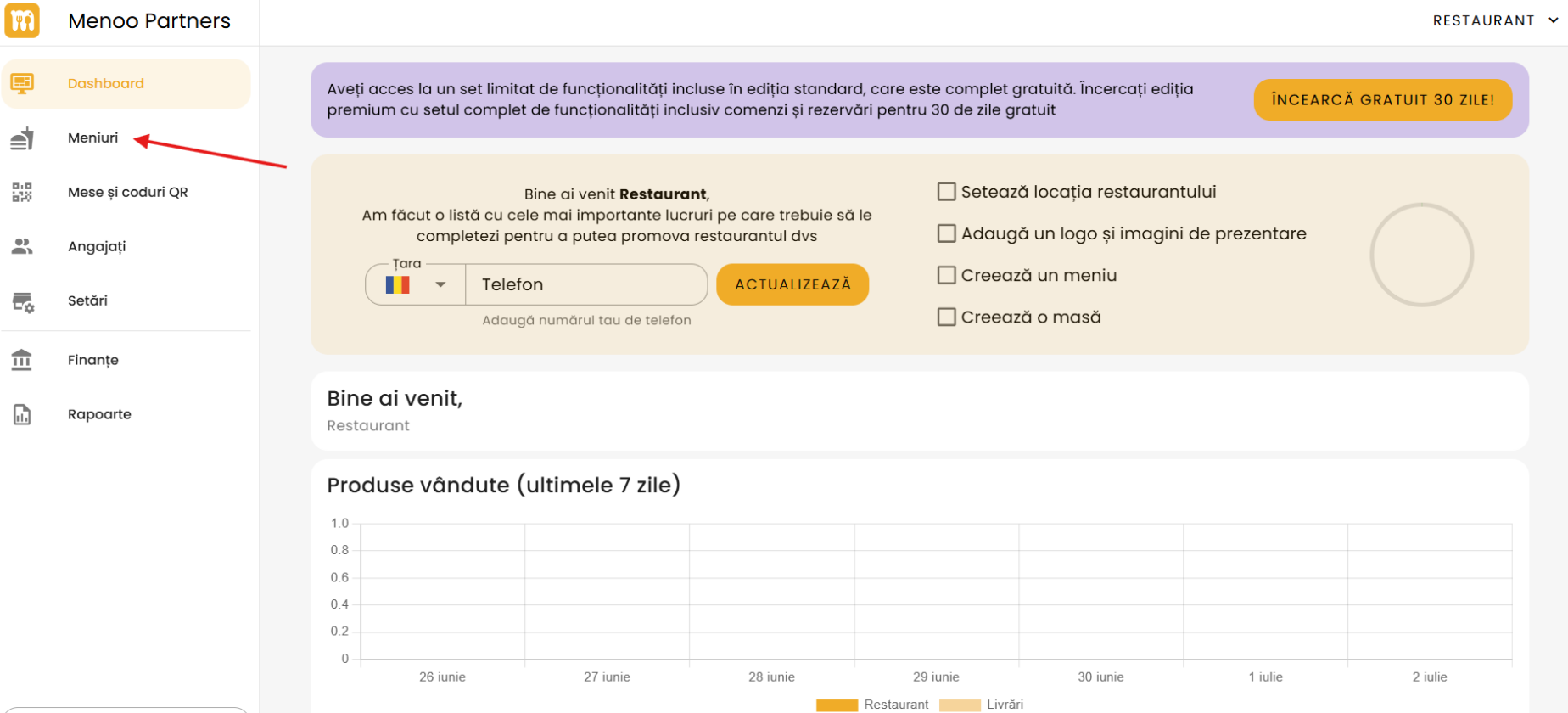
Initiate adding a new menu
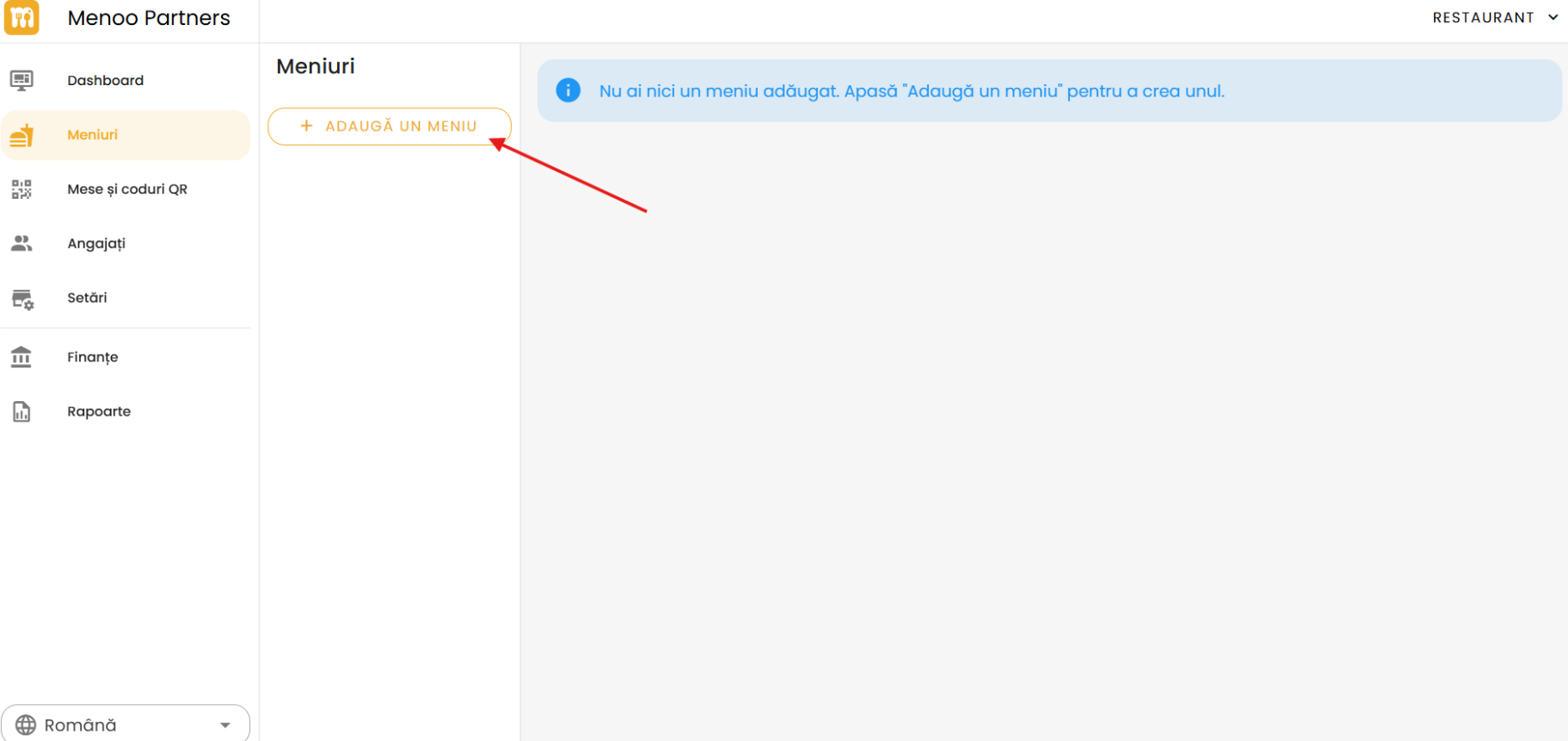
- If you don't have any menus added, you will see an informational message:
"You don't have any menus added. Press 'Add a menu' to create one."
- Press the "+ ADD A MENU" button, located below the "Menus" title.
Enter the menu name
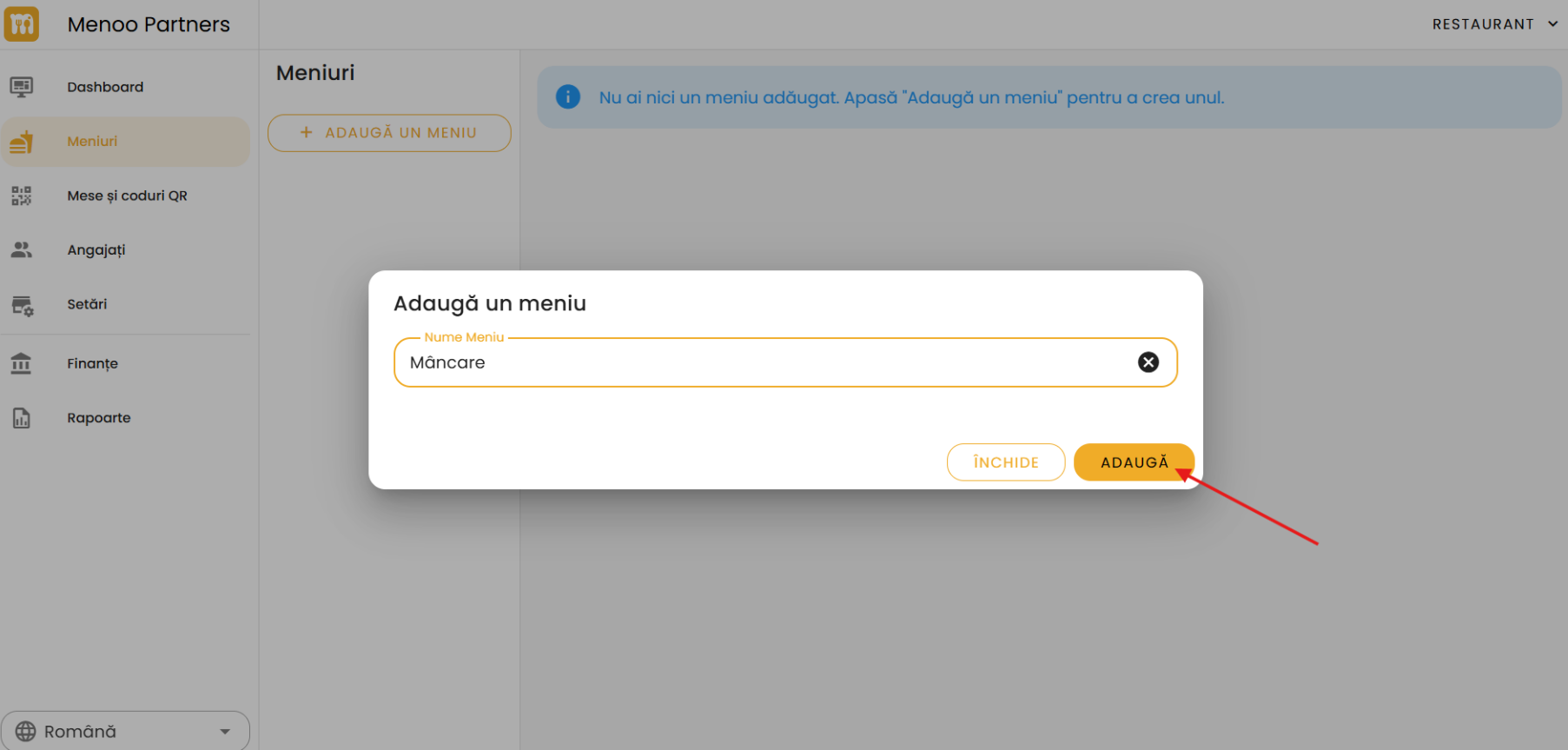
- A pop-up window titled "Add a menu" will open.
- In the "Menu Name" field, enter a relevant name (e.g.: "Main Menu", "Breakfast", "Drinks", etc.).
Confirm the addition
- Press the orange "ADD" button to save.
- If you want to cancel, press "CLOSE".
Add products to the menu
After creating the menu, you will be redirected to the product addition page. You have two options:
Automatic addition (recommended)
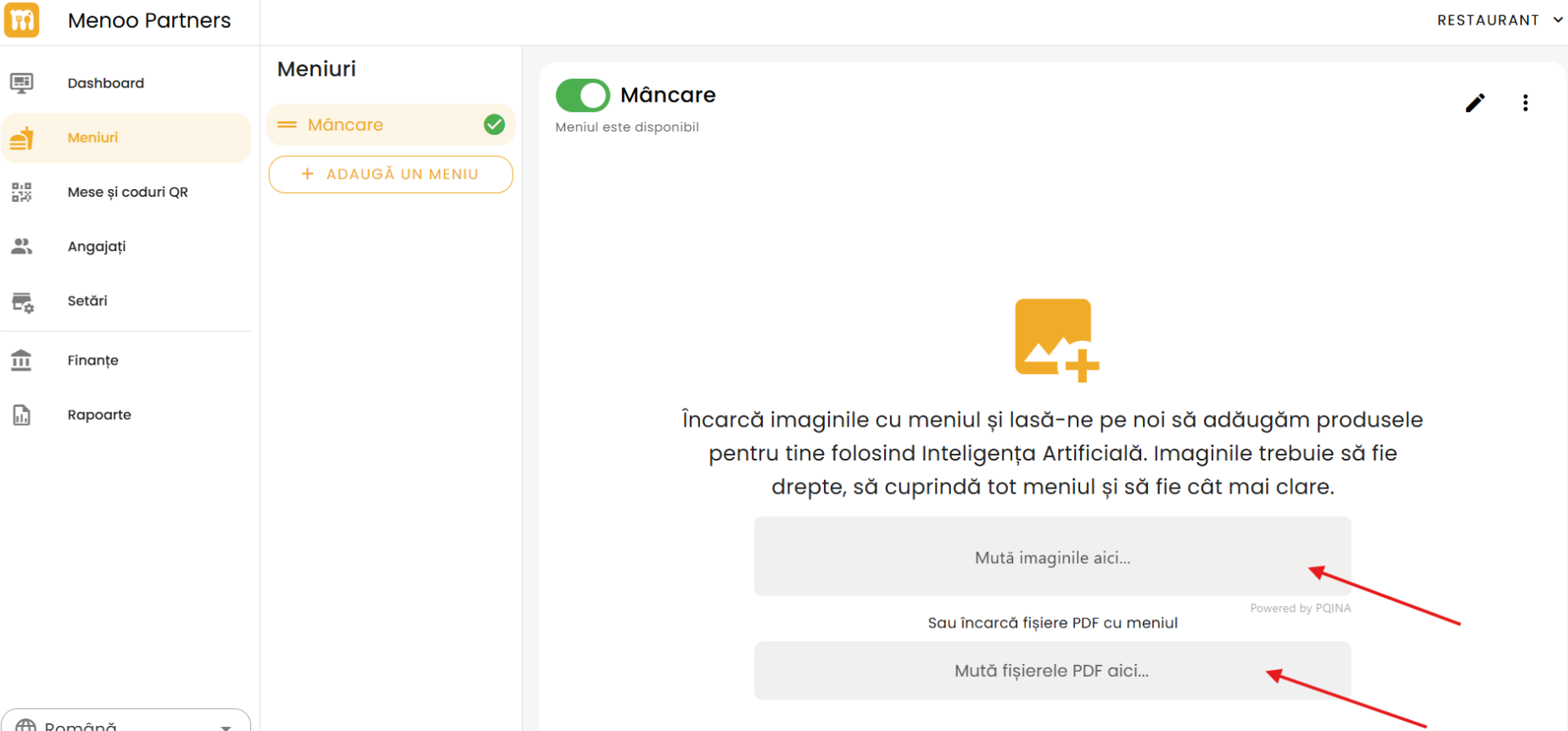
- Upload menu images:
Drag and drop images into the "Drop images here..." area or click to select them.
Make sure the images are clear, straight, and complete.
- Upload PDF files: Drag and drop PDF files into the dedicated area or click to select them.
Important note: The system uses Artificial Intelligence to automatically extract products, but some information may require manual verification and correction.
Manual addition
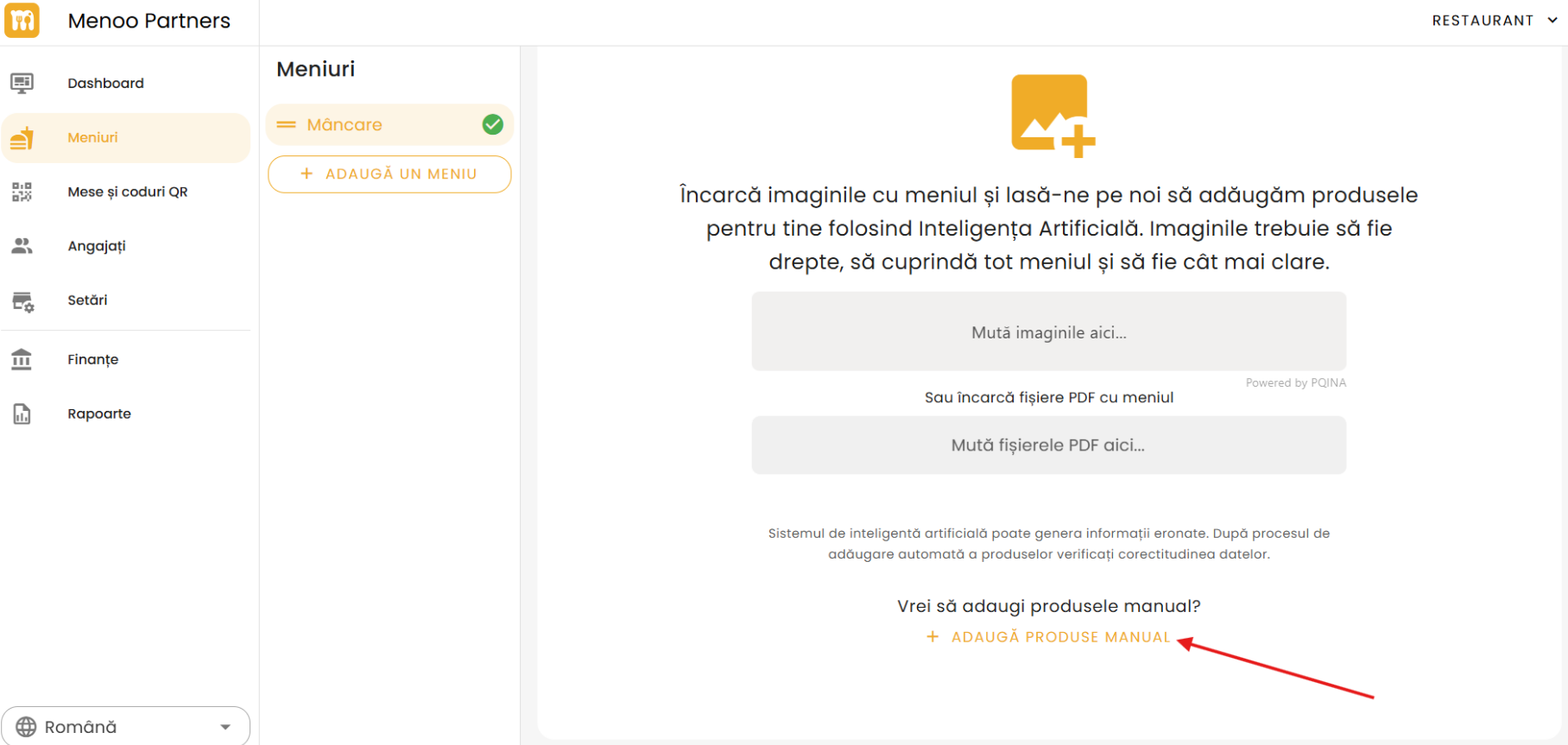
- If you prefer to add products individually, click the link "Want to add products manually?" then the "+ ADD PRODUCTS MANUALLY" button.