

AI-Powered Menu Import in Menoo Partners
This documentation details the process of creating and populating your restaurant's digital menu on the Menoo Partners platform using the AI-assisted recognition feature. This method significantly simplifies data entry, quickly transforming physical menus or image-format menus into digital product lists.
Access URL: https://parteneri.menoo.ro/ro/dashboard/menus
Accessing the "Menus" Section
- Log in to your Menoo Partners account.
- From the left sidebar menu, access the "Menus" section.
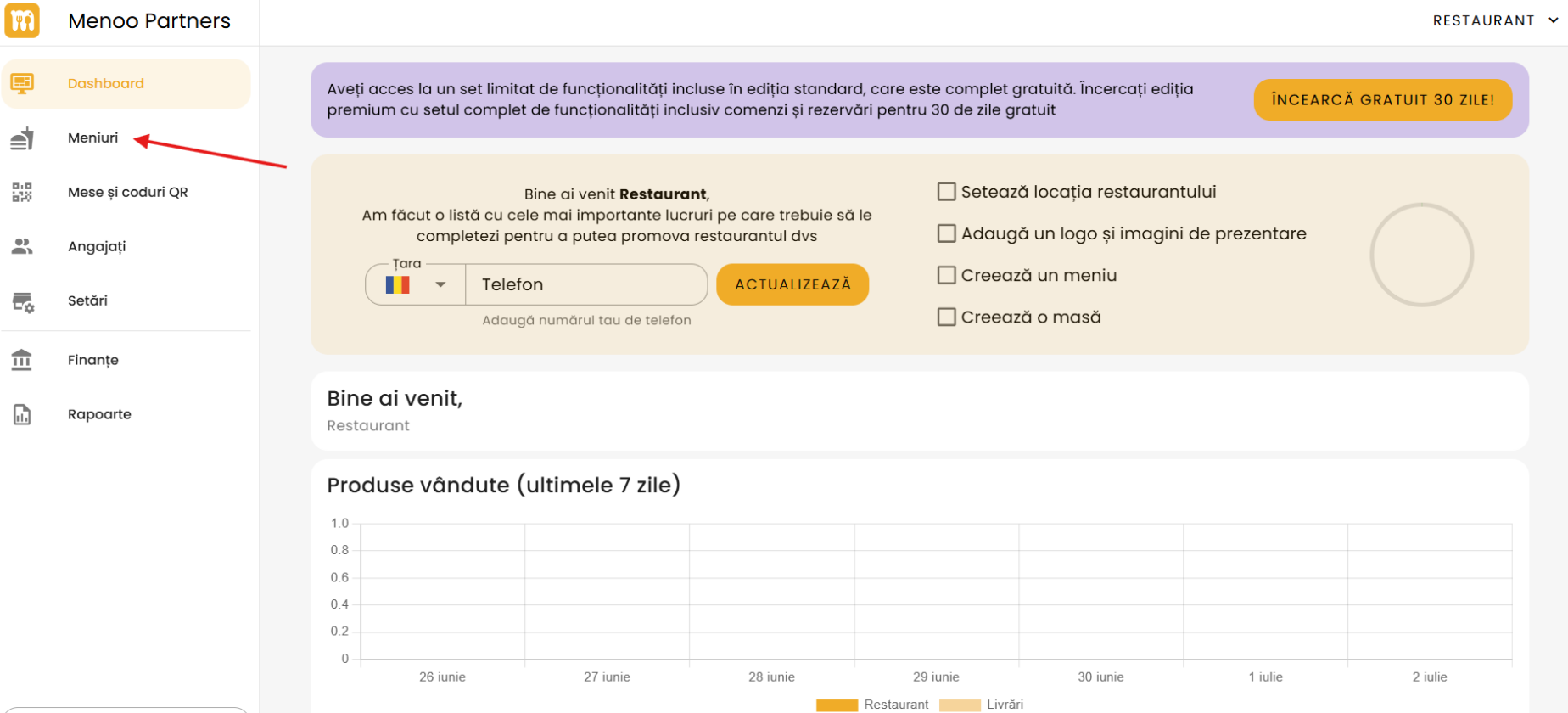
Adding a New Menu
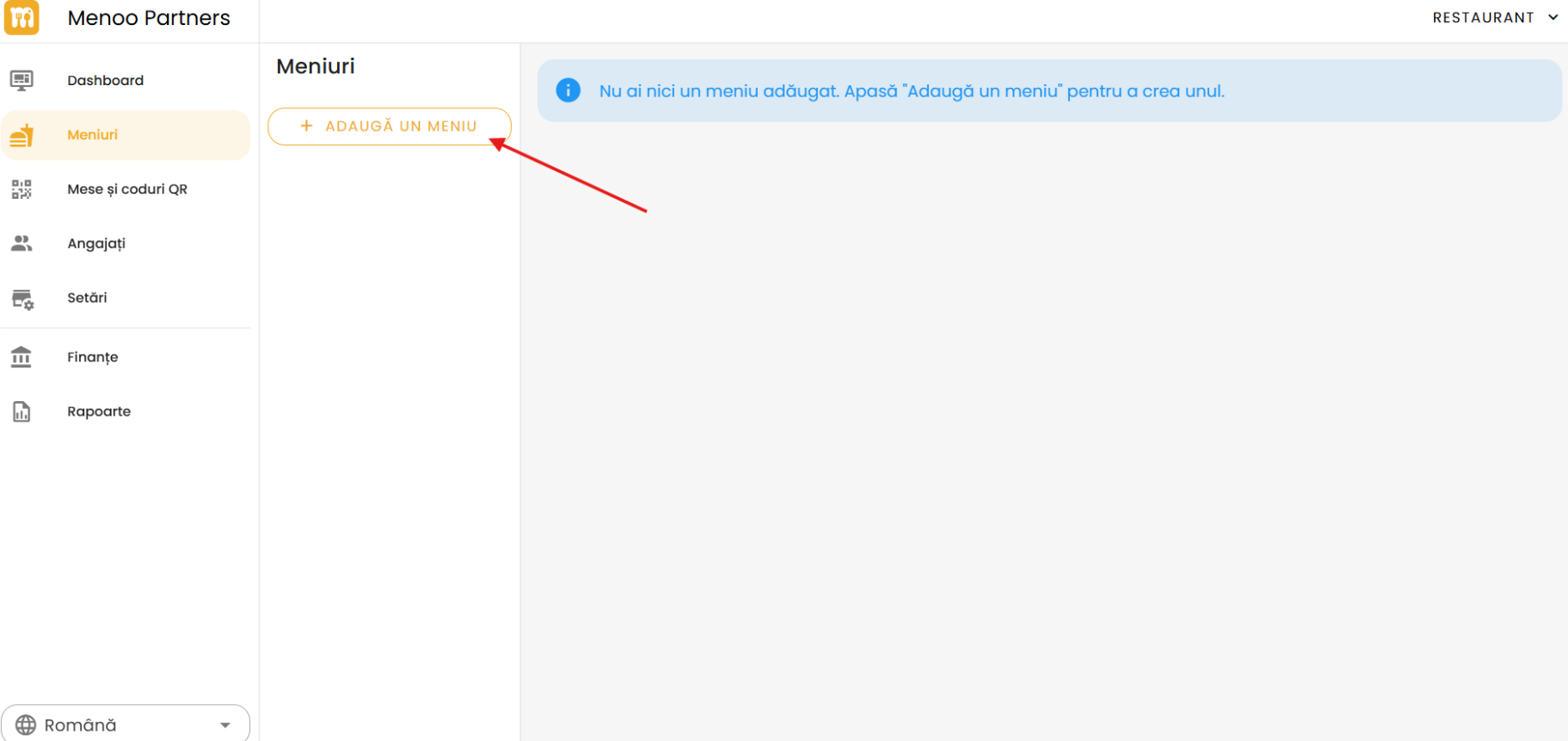
If you don't have a menu added yet, the following message will be displayed: "You don't have any menus added. Press 'Add a menu' to create one."
To add a new menu:
- Press the "+ ADD A MENU" button.
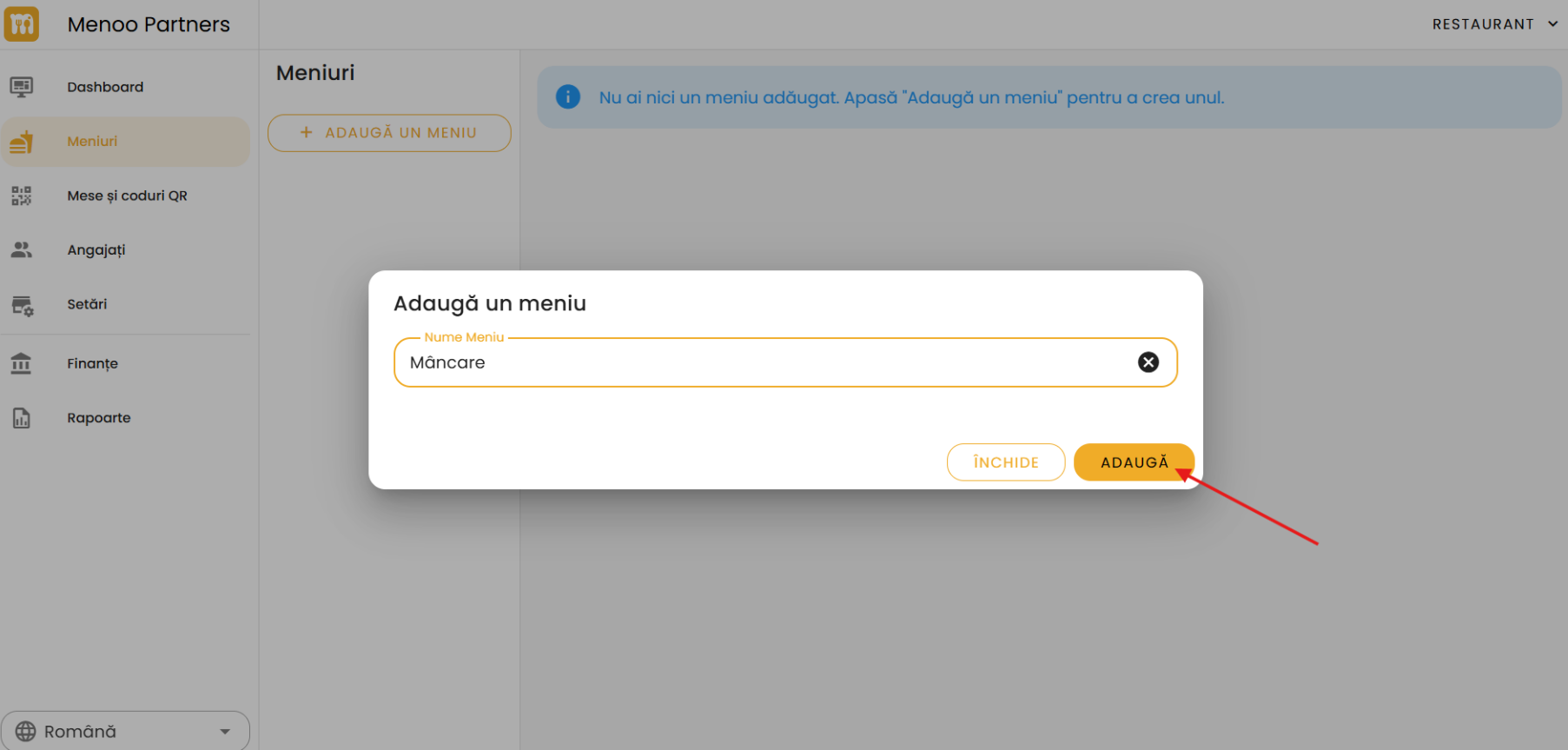
- In the window titled "Add a menu", enter a name (e.g.: Food, Drinks, Lunch Menu).
- Press "ADD" to create the menu.
- After creation, the menu will be displayed with the status "Menu is available".
Adding Products via Artificial Intelligence
This feature enables the quick transformation of an existing menu (image or PDF) into an interactive digital menu.
Upload Instructions
On the "Menus" page, you will see a dedicated file upload area accompanied by the following informational message:
"Upload your menu images and let us add the products for you using Artificial Intelligence. Images should be straight, cover the entire menu, and be as clear as possible."
Upload Methods
- Drag & Drop: Drag image files (JPG, PNG) into the upload area.
- Manual Upload: Click on the upload area to select files from your local system.
- PDF Files: You can also upload PDF files directly.
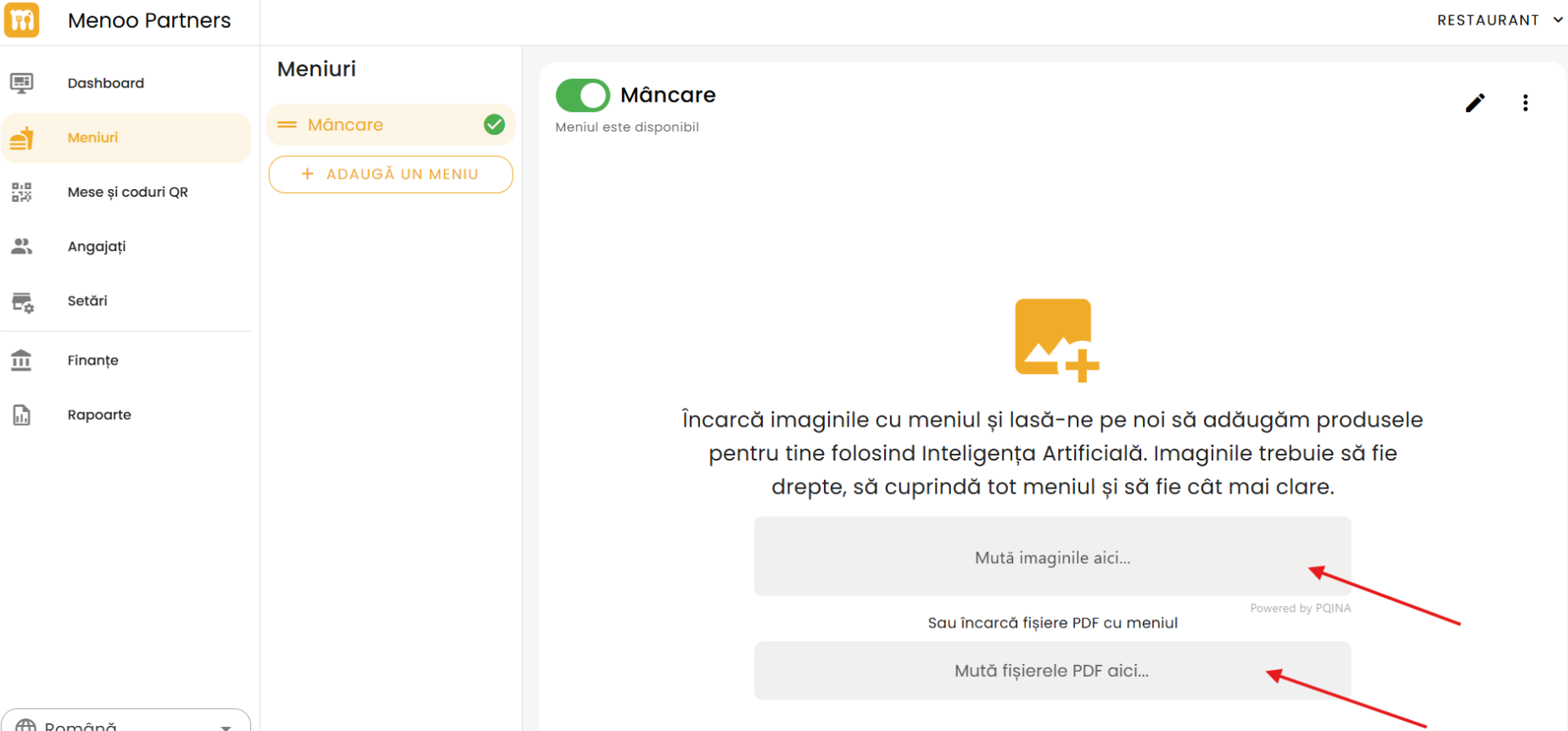
Image Processing
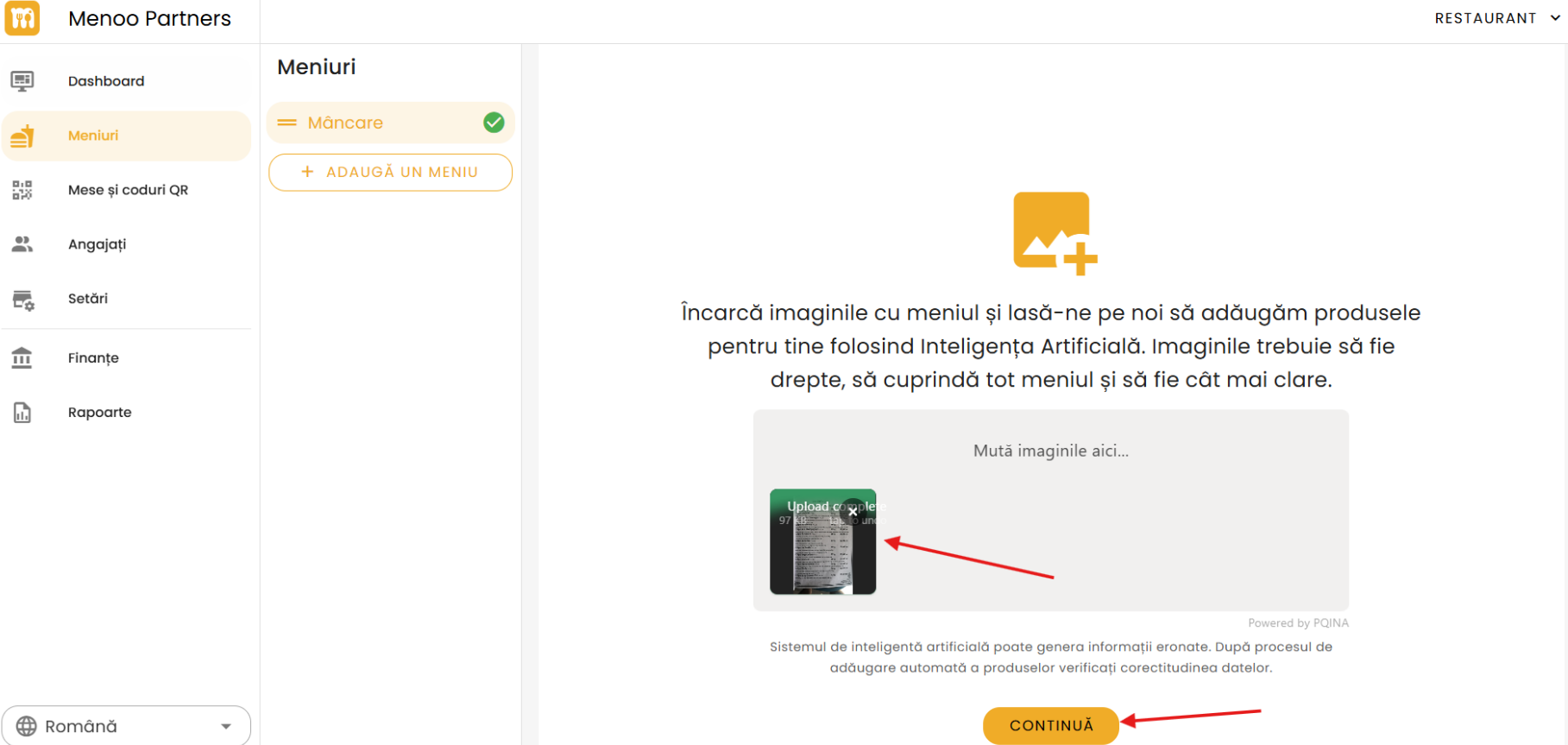
After uploading:
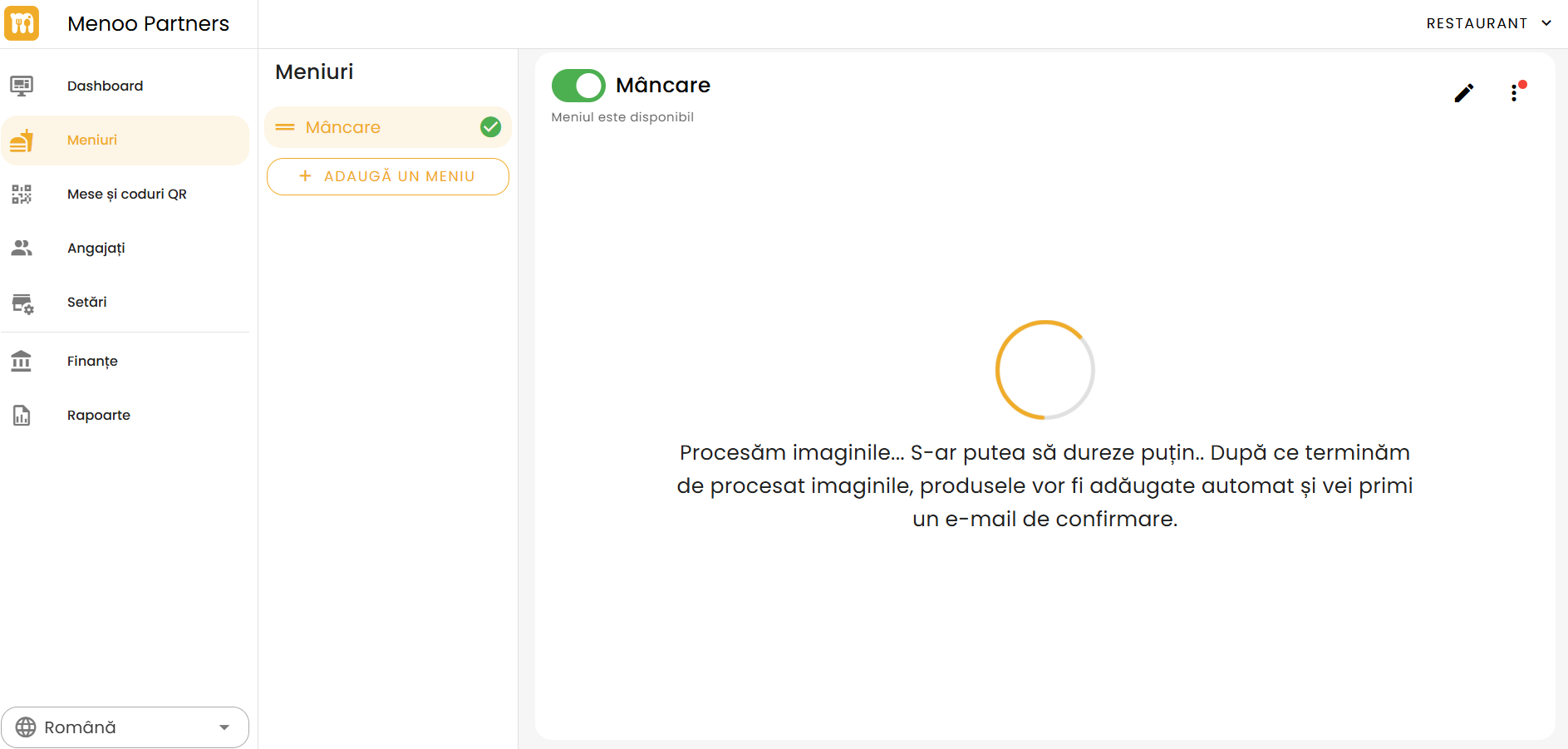
- The following message will appear: "Processing images... This may take a moment. Once we're done, products will be added automatically and you'll receive a confirmation email."
- A loading animation is displayed during processing.
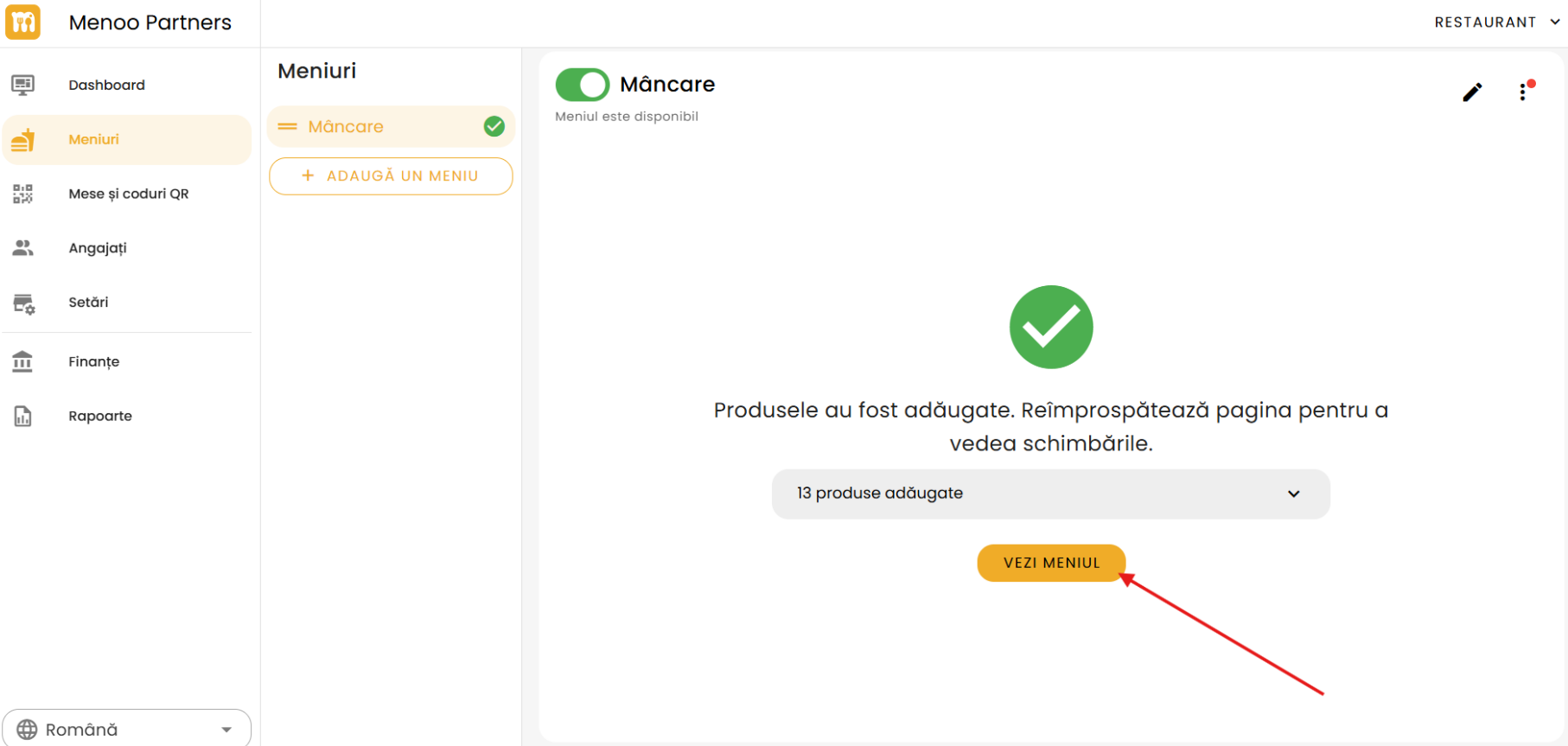
- Upon completion, the message will appear: "Products have been added. Refresh the page to see the changes."
- The number of detected products will be indicated (e.g.: 13 products added).
Press the "VIEW MENU" button to access the list of added products.
Reviewing and Editing AI-Added Products
After automatic processing, it is important to verify the accuracy of the generated data, because:
"The artificial intelligence system may generate inaccurate information. After the automatic product addition process, verify the correctness of the data."
Managing Categories
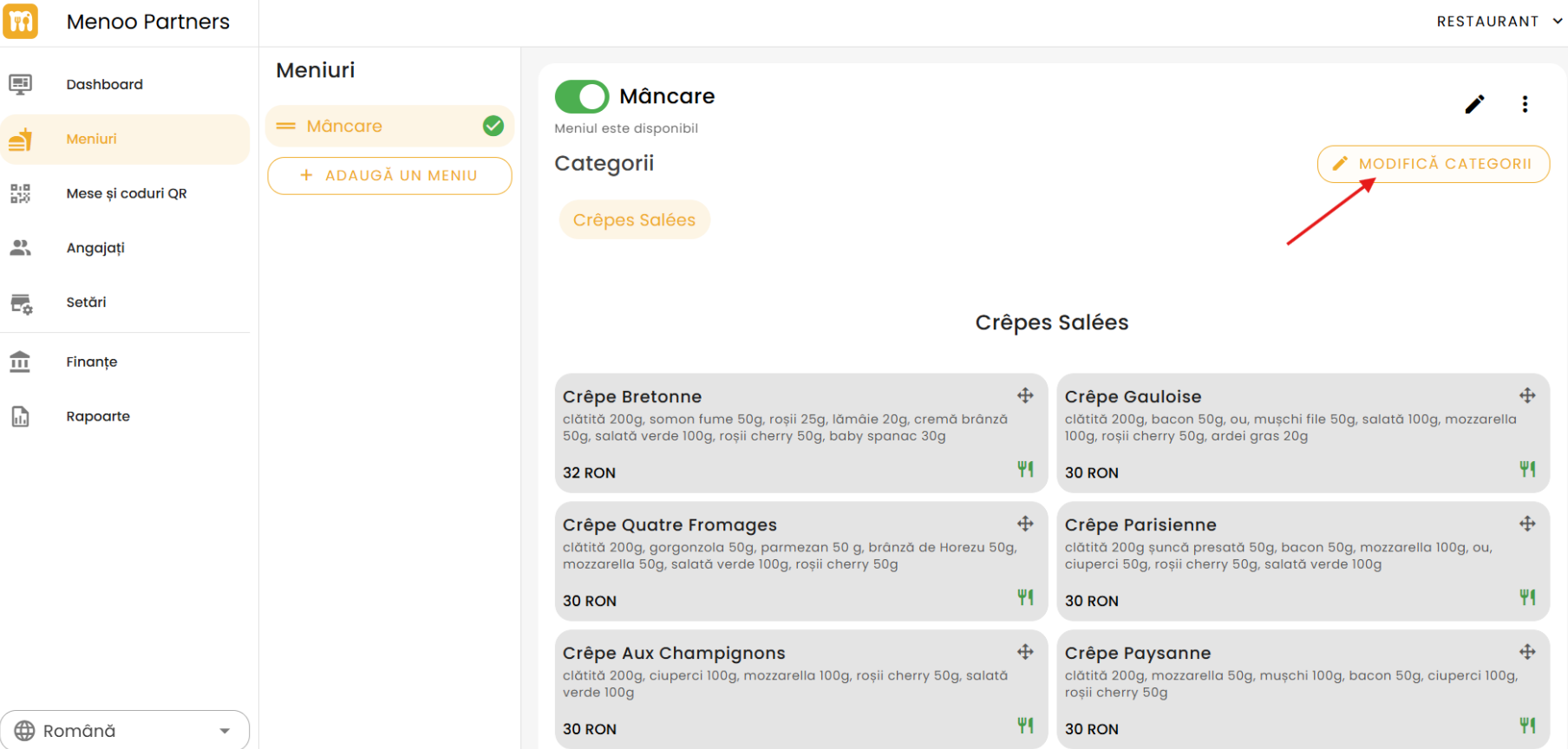
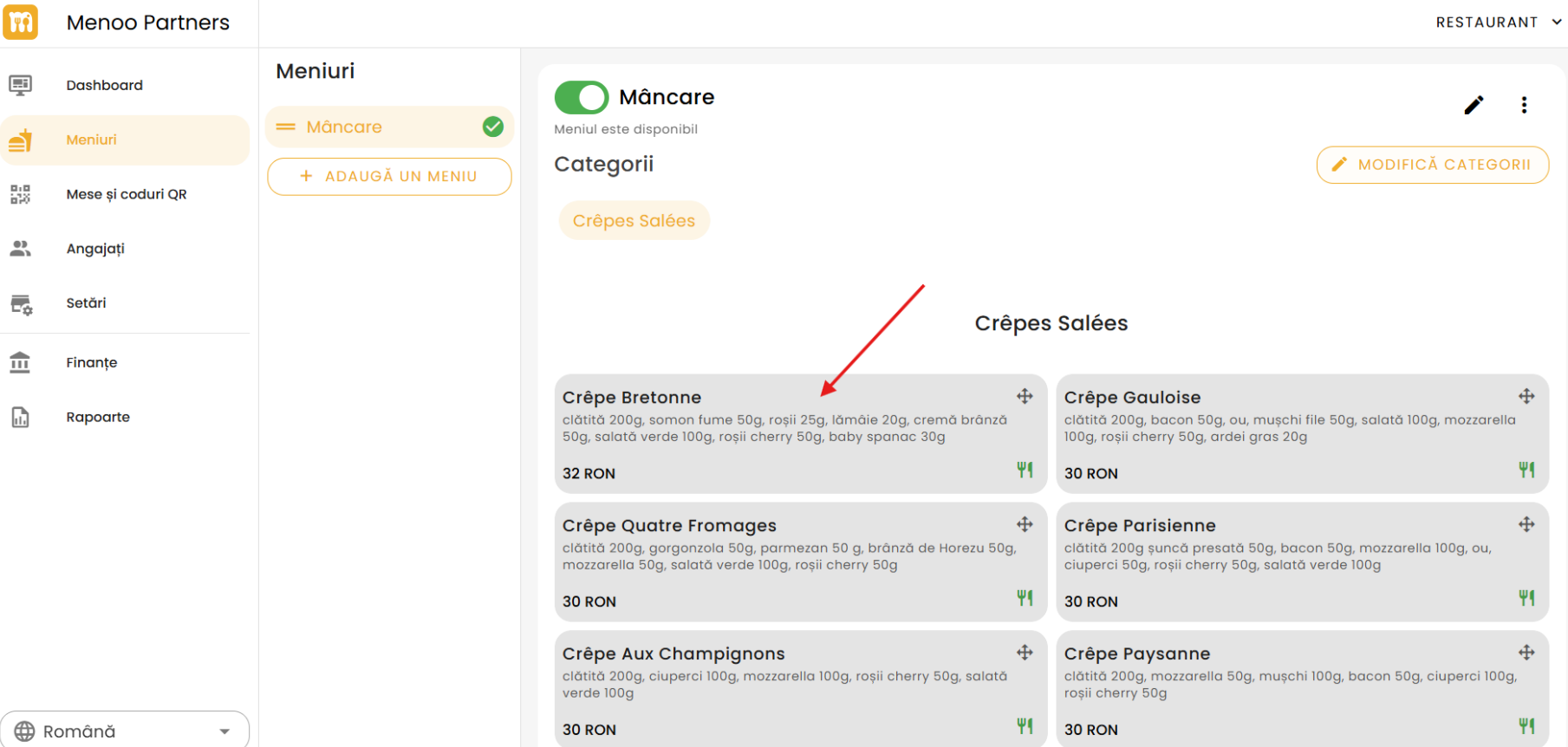
- The menu is organized into categories (e.g.: Food, Savory Crepes).
- Use the "MODIFY CATEGORIES" button to edit, reorder, or add new categories.
Editing Individual Products
- Products display: name, description, price.
- Click on the desired product to edit its details (e.g.: name, price, description, image).
- Carefully review each product to correct any errors.
Recommendations for AI Usage
For the best results:
- Image quality: Use clear files with high resolution, without shadows or reflections.
- Text clarity: Ensure the text is legible, without hard-to-read fonts or distortions.
- Menu structure: Well-organized menus with aligned prices and clear categories are processed more efficiently.
- Manual review: Regardless of AI quality, always perform a detailed review of the added products.