

Delivery
Configuring Delivery Services
Complete guide for configuring and managing home delivery services in the Menoo Partners platform
Important Note: Menoo Deliveries is a premium feature and requires an active subscription. You can find subscription pricing at the pricing section.
This guide details the steps and options available in the "Deliveries" section of the "Settings" page of your Menoo Partners account. Properly configuring this section is essential for efficient management of home delivery orders and for providing an optimal customer experience.
Access URL: https://parteneri.menoo.ro/en/dashboard/settings#delivery
Navigating to the "Deliveries" Section
- Log in to your Menoo Partners account.
- From the left-hand sidebar menu, select "Settings".
- In the settings sub-menu, select the "DELIVERIES" section.
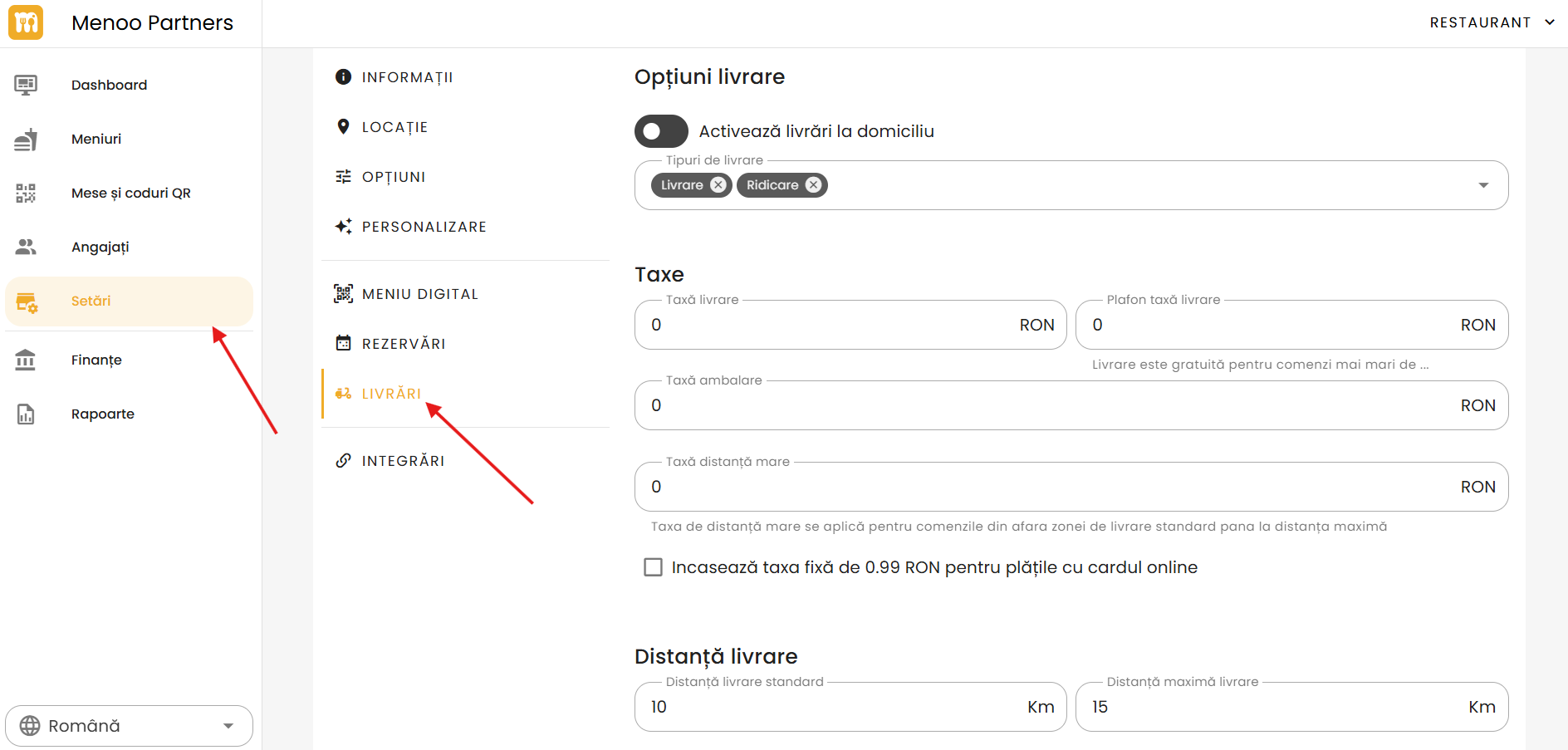
Delivery Options
Enable Home Delivery
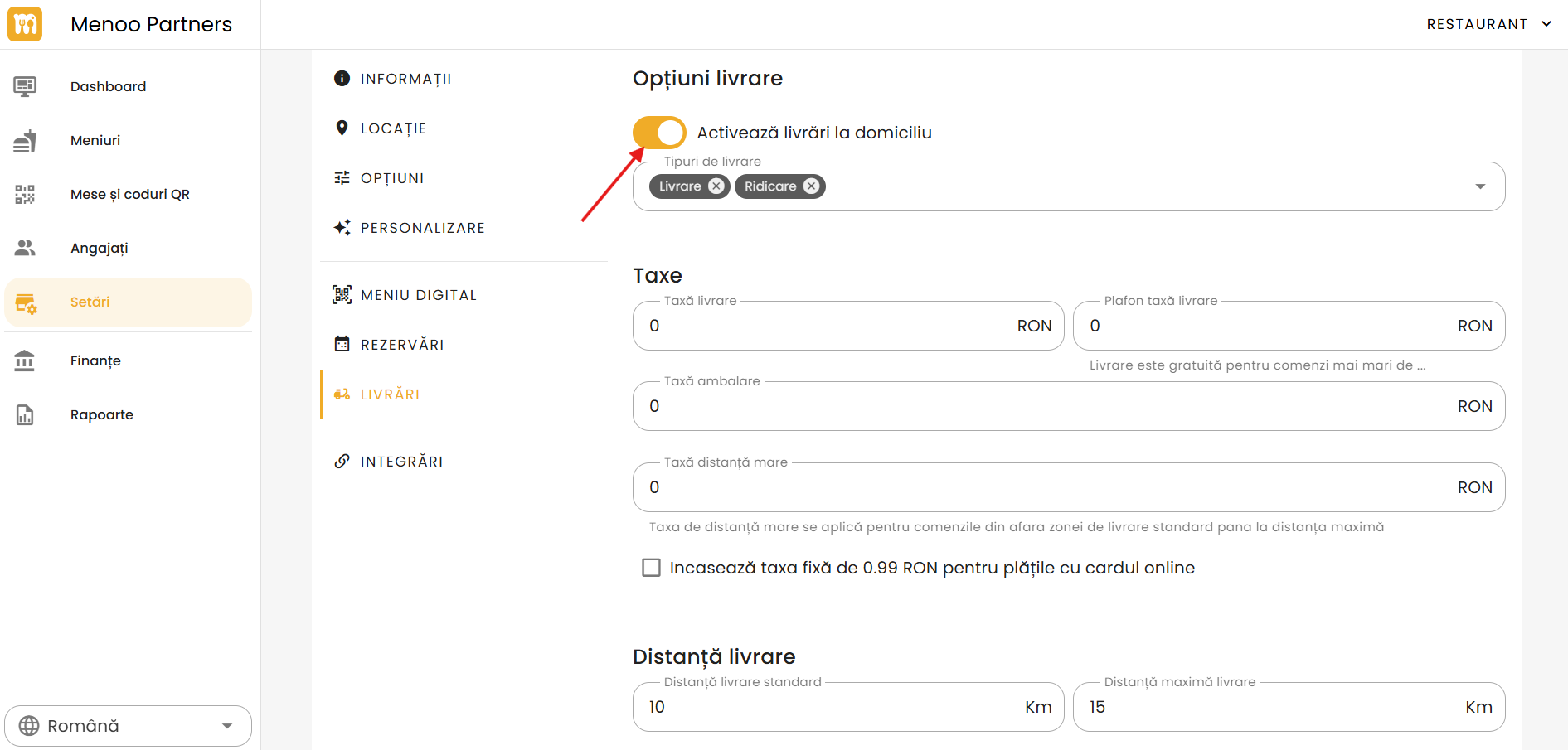
- The toggle enables or disables the delivery service.
- When enabled, customers can place orders for delivery.
- When disabled, the delivery option will not be available.
Delivery Types
- Delivery: Enables home delivery.
- Pickup (takeaway): Customers can pick up their order in person.
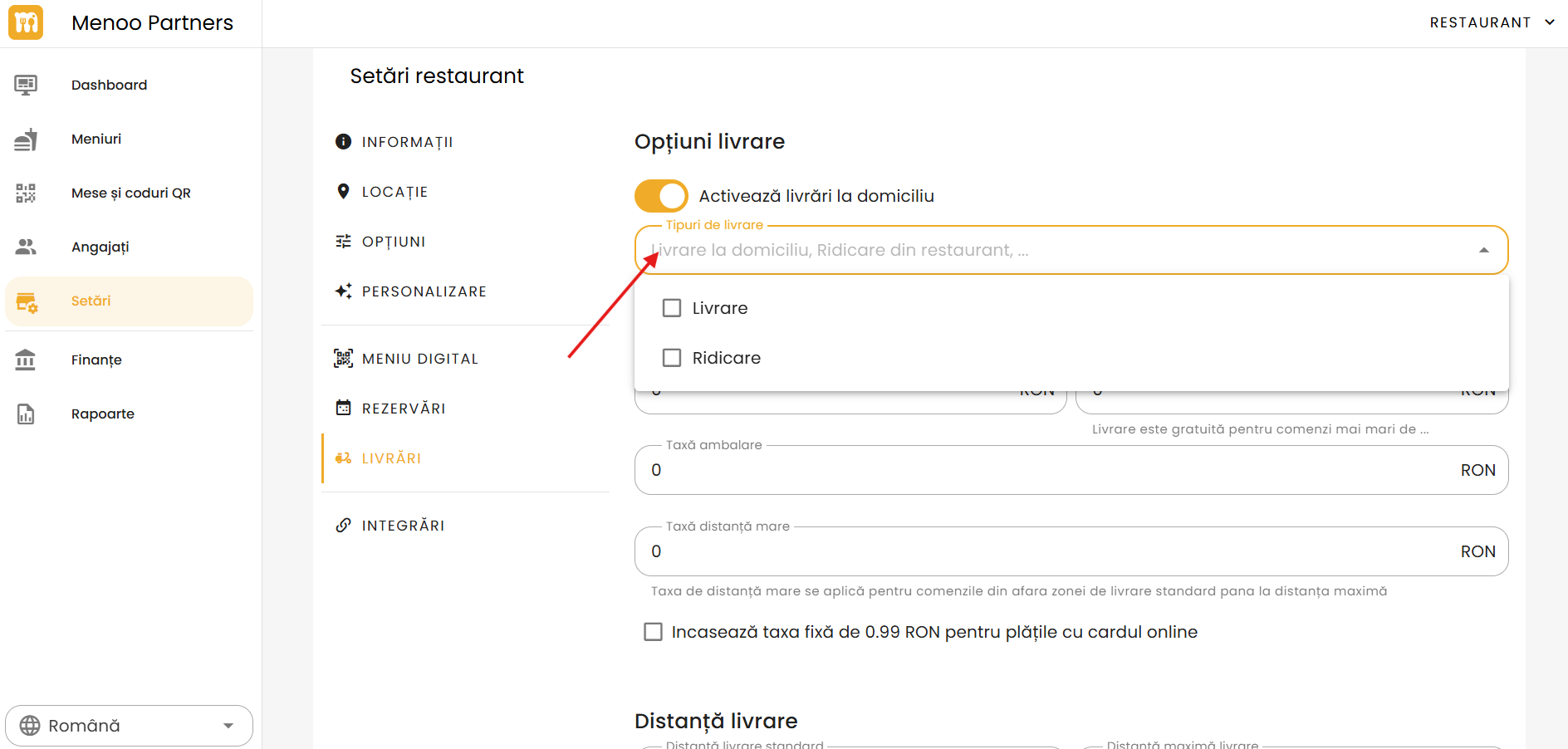
Note: Both options can be active simultaneously.
Delivery Fee
- Enter the fixed amount (in RON) for each delivery.
- Example: 5 means each delivery will cost 5 RON.
Packaging Fee
- Enter an additional packaging fee, if applicable.
Free Delivery Threshold
- The minimum order amount above which delivery becomes free.
- Example: If set to 100, an order of 100 RON will have free delivery.
Long Distance Fee
- Enter the fixed amount (in RON) for each delivery that exceeds the standard delivery distance.
- Example: 10 means each long-distance delivery will cost an additional 10 RON.
Online Payment Surcharge
- Check this option if you wish to add a 0.99 RON surcharge for online card payments.
Standard Delivery Distance
- Enter the standard delivery distance (in kilometers) within which orders are delivered at the standard delivery fee.
- Example: 10 means deliveries within a 10 km radius.
Maximum Delivery Distance
- Enter the maximum distance (in kilometers) within which orders can be delivered.
- Example: 25 means deliveries within a 25 km radius.
Delivery Phone Number
- Enter the dedicated phone number for deliveries.
- This will be displayed to customers for order-related inquiries.
Delivery Schedule
Define the daily time slots during which your restaurant performs deliveries:
- For each day of the week, check the availability box.
- Set the time range (e.g.,
09:00-22:00). - Make sure the schedule reflects your staff availability.
Saving Changes
After configuring all options:
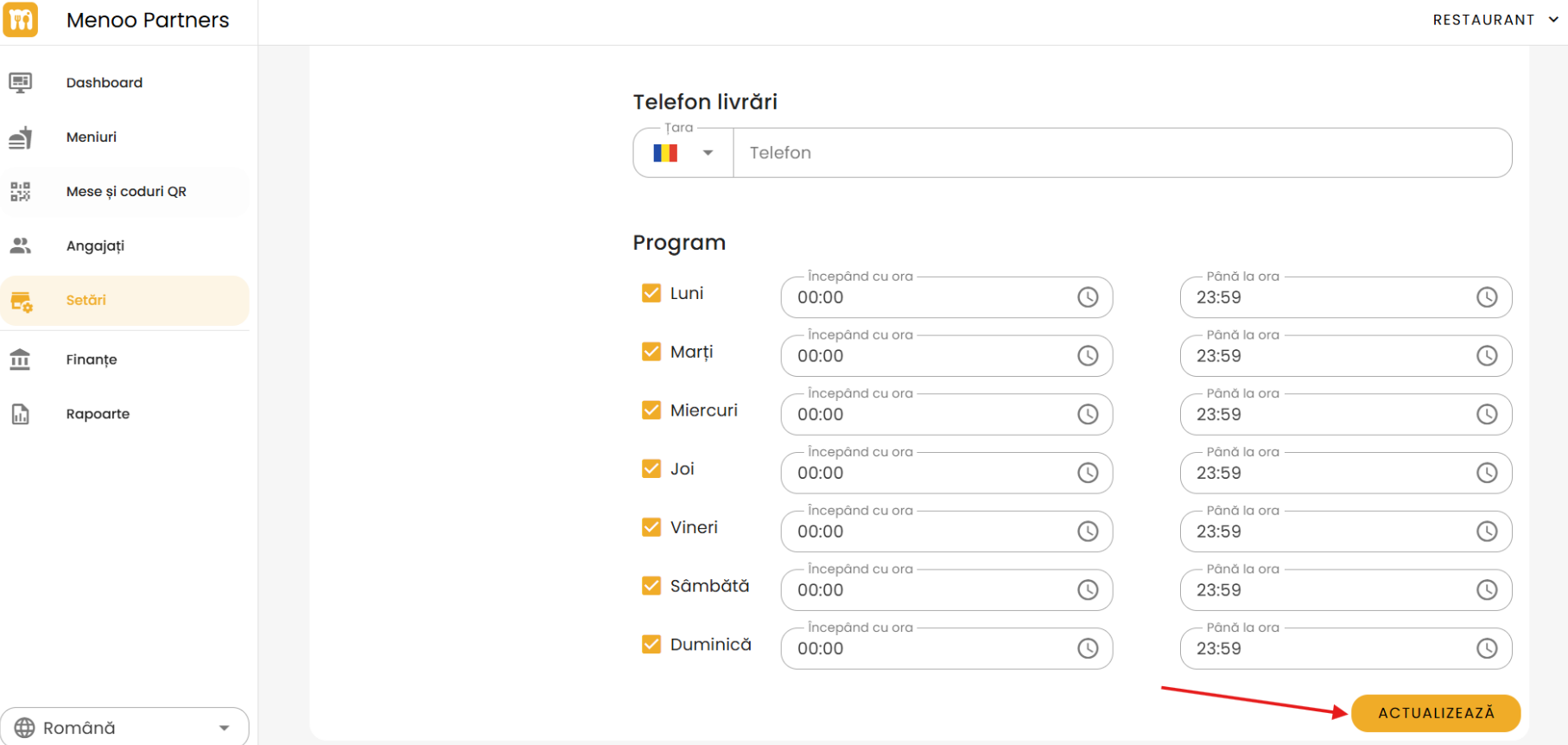
- Press the "UPDATE" button located at the bottom of the page.
- Changes will be saved and applied to the platform.