

Delivery
How Do I Receive Orders?
Guide for receiving, managing, and completing delivery orders through the Menoo Waiter app
Note: After creating a menu (Add Menu with AI or Add Menu Manually), uploading your restaurant's presentation photos, and configuring the delivery option (click here to see how to configure deliveries), your restaurant becomes visible on both the Menoo app and the website, and is eligible for deliveries. Once your restaurant is eligible, customers can order either from the automatically generated web page for your restaurant or from the "Menoo" mobile app.
Authenticating in the Menoo Waiter App
To start receiving orders, you need to log in to the Menoo Waiter app:
- Download the App: Make sure you have the Menoo Waiter app installed on your smartphone (available on the App Store and Google Play).
- Log In: Open the app and enter the Email and Password provided by the restaurant administrator. Click here to see how to create a waiter account
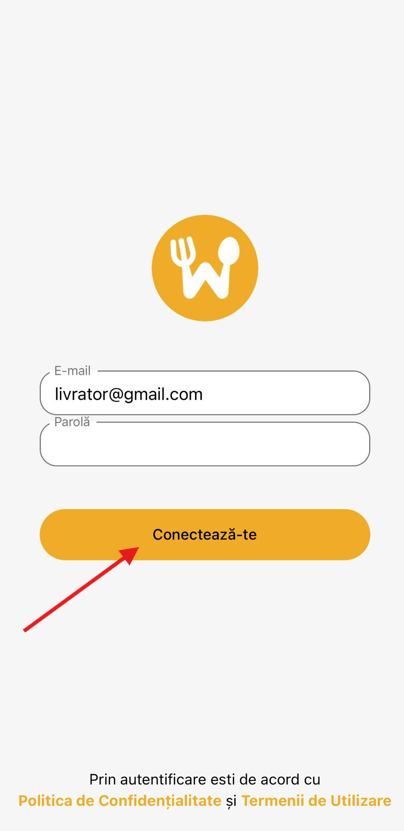
Receiving and Getting Notified of New Orders
Menoo ensures prompt notification of new orders, regardless of the chosen receiving method.
In-App Notification:
- When a new order is placed and assigned to you, you will receive a notification on your phone through the Menoo Waiter app.
- This is often accompanied by a distinctive sound to get your attention.
- The new order will appear on the app's main screen, highlighted as "New".
Important Note: You can enable delivery alerts so they ring continuously until the order is accepted or, if applicable, cancelled. This feature acts as a safety system to ensure no order is missed.
Notification on the Menoo Device with Thermal Printer (Optional):
- If the restaurant uses a Menoo-rented device with thermal printer support, the order will be automatically printed on paper.
- This printed receipt serves as a physical confirmation and a quick checklist.
Managing and Confirming the Order
After receiving the notification, you need to manage the order to initiate the delivery process.
Viewing Order Details:
Both in the app and on the receipt printed by the Menoo device, you will find all essential order details:
- Delivery address: Where the order needs to be delivered.
- Ordered products: The exact list of items included in the order.
- Payment method: How the payment will be made (e.g., Cash, POS on delivery, online payment).
- Customer contact: The customer's phone number for any clarifications.
- Order total: The final amount due (if payment is cash).
Confirming the Order (Manual):
- In the Menoo Waiter app, press the "CONFIRM" button to indicate that you have taken on the order.
- After pressing "CONFIRM", you must select an estimated delivery time.
- It is crucial to manually confirm the order in the app.
Important Note: If the order is not accepted within 10 minutes of being received, it will be automatically cancelled.
Cancelling the Order (If Necessary):
- If you notice an issue with the order or there are valid reasons for cancellation, use the "Cancel" option in the app.
- It is recommended to communicate with the restaurant administrator before cancelling.
Making the Delivery
- Preparing the Order: Check all listed products and make sure they are properly packaged.
- Navigation: Use the delivery address and, if needed, contact the customer.
Customer Interaction:
- Upon delivery, hand over the correct order.
- If the payment method is "Cash", collect the exact amount from the customer.
Completing the Order
After delivery and, if applicable, collecting payment:
- Return to the App: Open the Menoo Waiter app again.
- "COMPLETE" Button: Tap on the respective order and select "COMPLETE".
Why This Matters:
Completing the order is essential for:
- Updating the status in the restaurant's system.
- Recording the sale.
- Freeing up the delivery driver for new orders.