

Waiter App
Main "Tables" Page
Guide to using the main table management interface in the restaurant
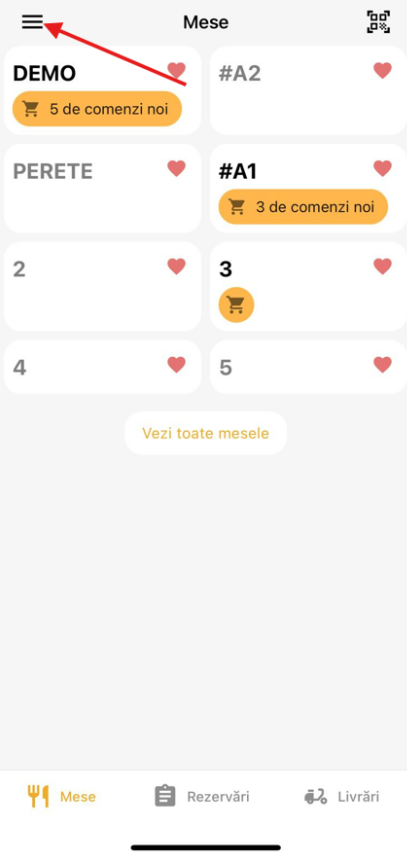
This is the main interface for managing restaurant tables.
App Header
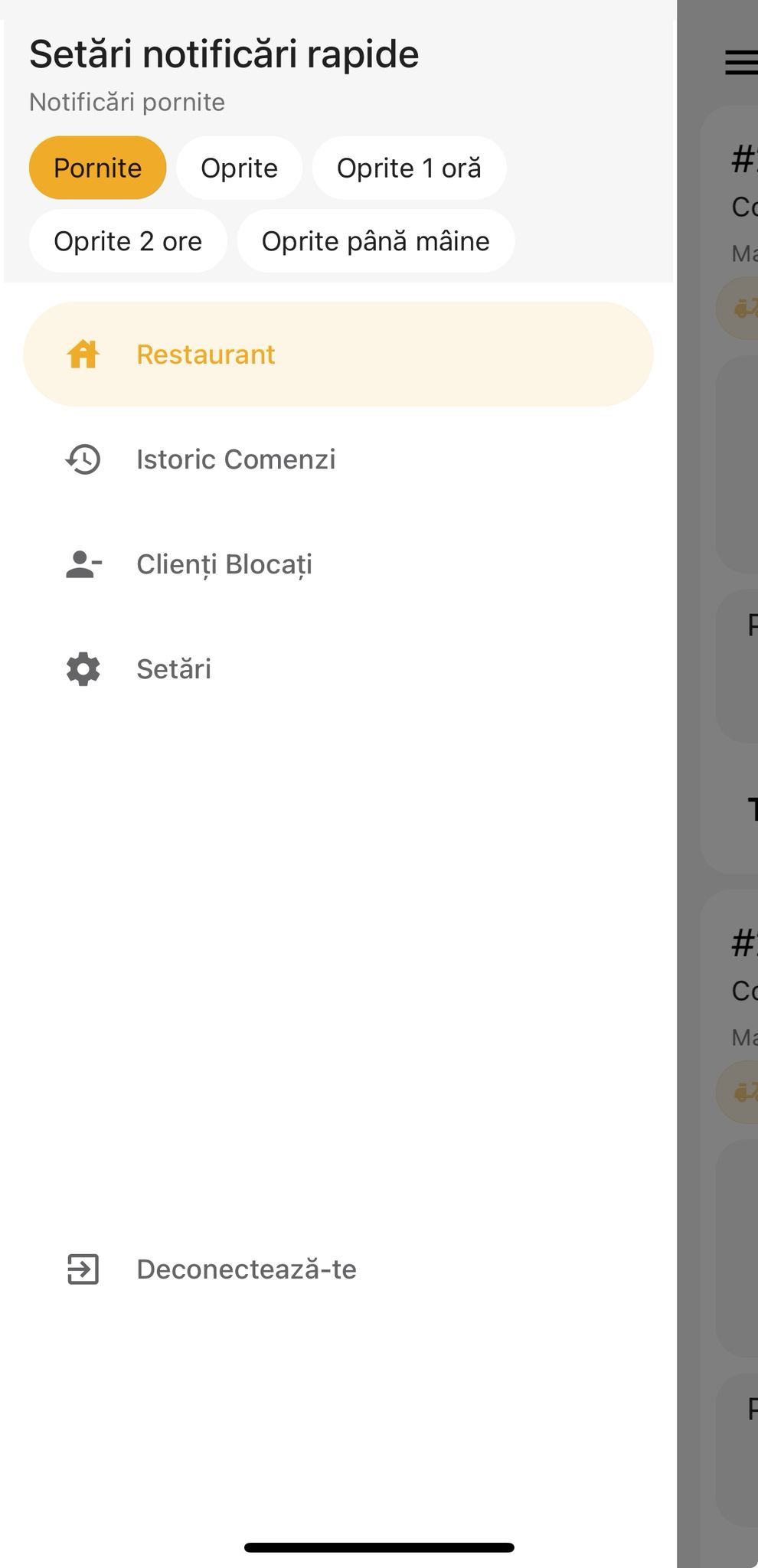
- Side menu: Accessible from the top-left corner.
- Quick notification settings
- Order history
- Blocked customers
- App settings (e.g., "About us", app version)
- Log out
Viewing Tables
- Each table is displayed as an individual card.
- Table name: (e.g., "#A1", "#A2", "WALL", "2", "3", etc.)
- New orders: Indicated by a numeric badge (e.g., "5 new orders").
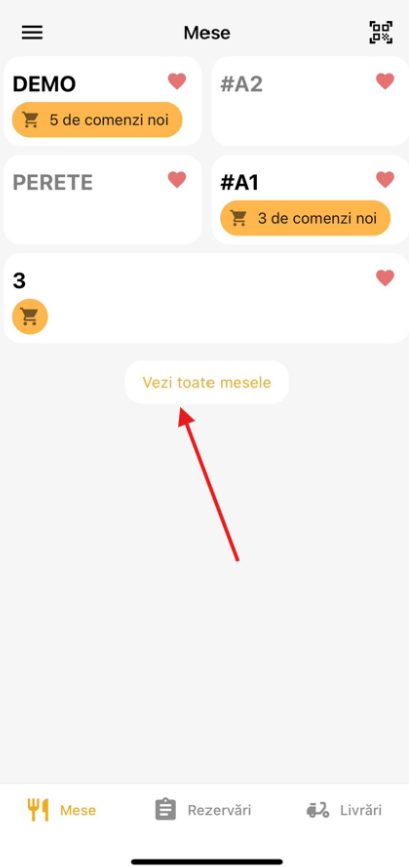
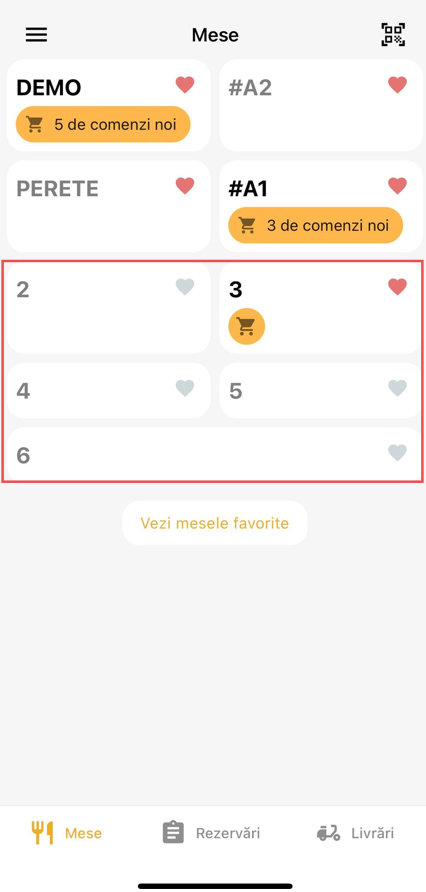
- "View all tables" button: Shows all tables, including those without active orders and not in favorites.
Bottom Navigation Bar
- Tables – Main screen.
- Reservations – Access the reservations section.
- Deliveries – Access delivery orders.
Important note about notifications: To receive notifications related to a specific table, the table must be added to favorites.
To do this:
- Press the "View all tables" button on the main page.
- Find the desired table and press the heart icon on the table card.
After this step, the table will appear in the favorites list, and you will automatically receive notifications about new orders or changes for that table.