

Waiter App
Managing a Specific Table
Detailed guide to managing orders and information for a table in the Menoo Waiter app
This section describes in detail how to manage orders and information for a specific table in the Menoo Waiter app.
Access this page by selecting a table from the list on the main "Tables" page.
Table header
The header contains essential information about the table status and provides quick access to administrative actions:
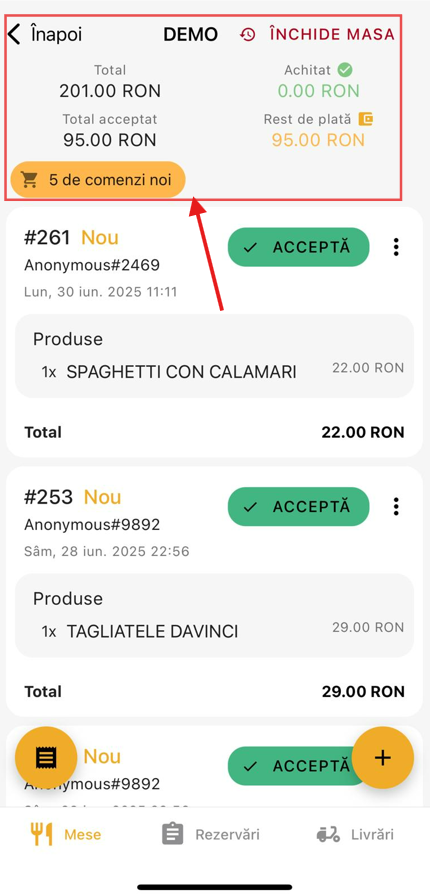
- Back button – Return to the full table list.
- Total Orders – The total value of orders for that table.
Example:
Total 201.00 RON - Total Accepted – The amount already accepted and sent to the kitchen/bar.
Example:
120.00 RON - Paid – The amount already collected from the customer.
Example:
100.00 RON - Remaining – The outstanding amount to collect.
Example:
101.00 RON - Close Table – Button used to mark the table as closed.
Table orders
All orders associated with the table are displayed as cards, each representing a distinct order.
Information displayed for each order:
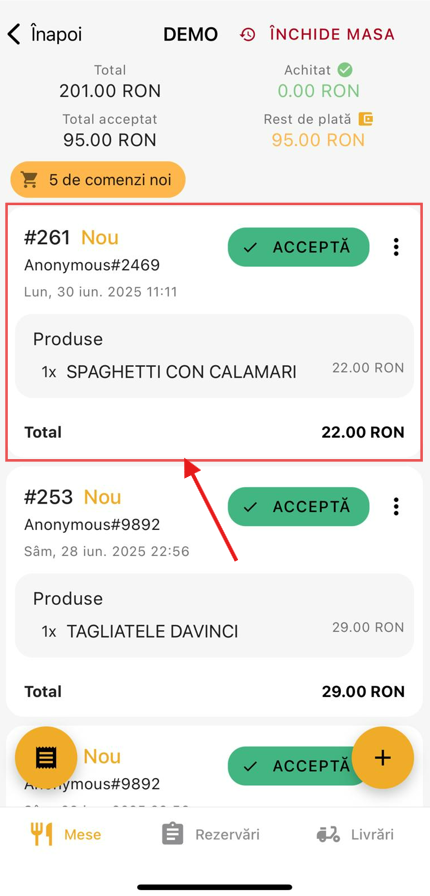
- Order Number – e.g.,
#123 - Status – e.g.,
New,Accepted,Cancelled - Customer – Customer identifier (e.g.,
Anonymous#2469) - Date and Time – When the order was placed
- Ordered Items – Detailed list of items
- Order Total – Total value of that order
Available actions for each order
For each order, the following options are available:
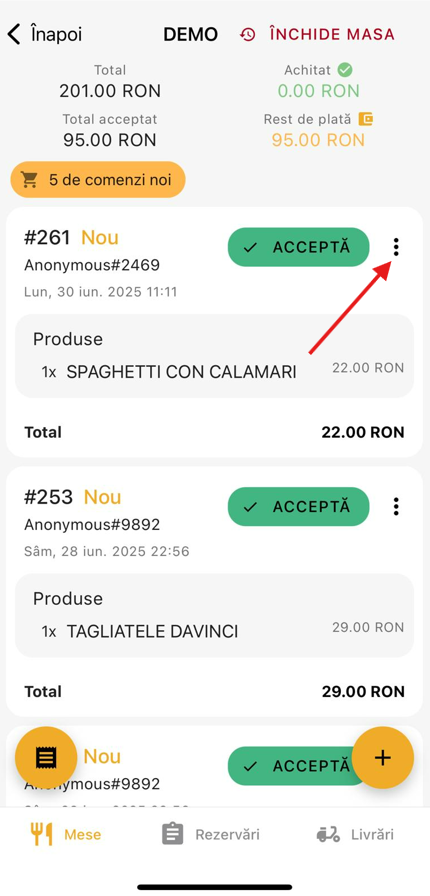
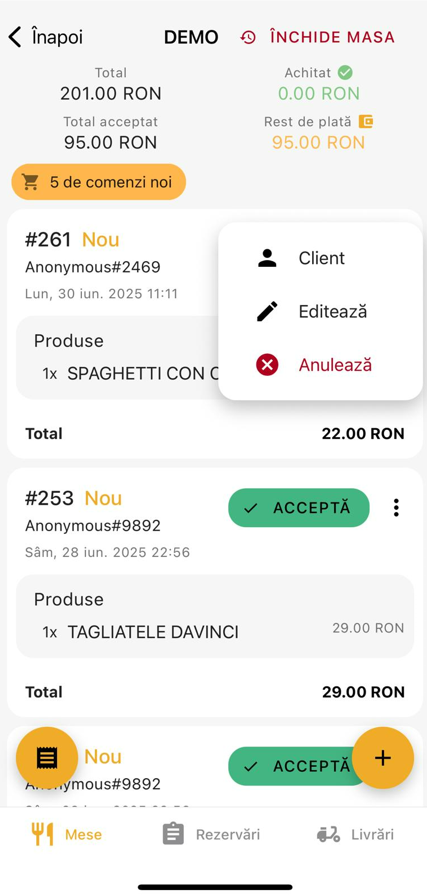
- Accept – Confirms the order and sends it to the kitchen/bar.
- Edit – Allows modifying the order (e.g., adjusting quantity, adding notes).
- Cancel – Cancels the order in case of error or customer withdrawal.
- View customer – Access additional customer information.
Workflow recommendations
- Accept orders as soon as they appear to maintain a fast flow with the kitchen/bar.
- Check the total amount and payment status before closing the table.
- Do not close the table until the customer has paid in full.
- Use the "Edit" function to manage quick changes to orders without cancelling entirely.
Note: Unaccepted orders will not be processed by the kitchen/bar.
It is the waiter's responsibility to check new orders and accept them manually.
When to use "Close Table"?
Use this function only after:
- All orders have been processed and delivered.
- Payment has been fully confirmed.
- The remaining balance is zero.
After pressing the Close Table button, the table will be reset and removed from the active list.